Computer screen glare is easiest to solve when you trace the light instead of immediately raising brightness or buying a filter. Identify the source, the surface that reflects it, the screen angle, and the viewer position at the moment the glare appears. Change the light geometry first, then clean the screen, reduce nearby reflections, and adjust display settings for readable contrast. Treat an anti-glare filter as a later option because it may reduce one reflection while changing clarity, brightness, color, fit, or touch compatibility.
Brightness Changes the Image, Not the Reflection Path
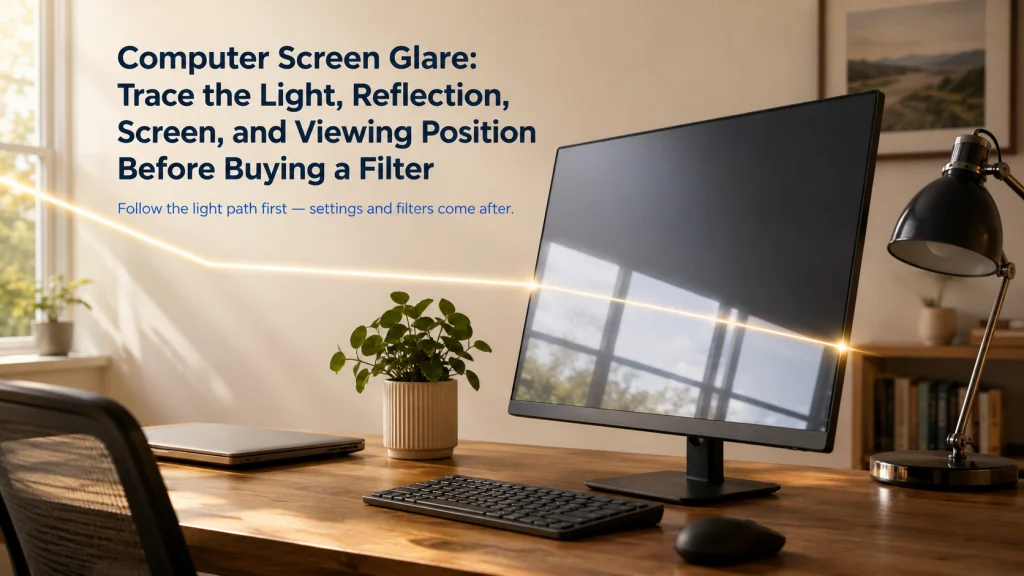
A bright patch appears across the monitor in the afternoon. The reader raises the display brightness, lowers it, then raises it again. The page changes, but the pale window shape remains visible. To read around it, the chair shifts slightly to one side and the head follows.
The useful line is not inside the settings menu. It runs from the window to the screen and from the screen to the eyes.
Reflection-path opening:
Light source → window, ceiling fixture, task lamp, or bright surface
Reflecting surface → glossy screen, polished desk, glass frame, pale wall, or nearby object
Viewer → the current eye and head position where the reflection becomes visible
Why brightness fails → brightness changes the displayed image, but the physical path between source, screen, and viewer remains in place
A screen can be bright enough to overpower part of a reflection and still be difficult to read comfortably. The first job is to identify the geometry that creates the glare, not to make the image fight harder against it.
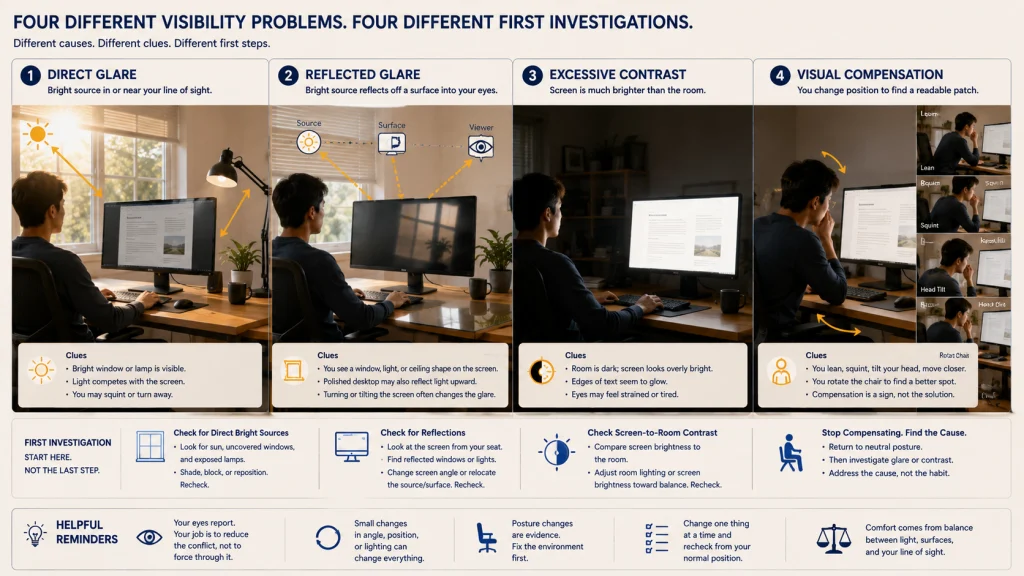
Define Direct Glare, Reflected Glare, Contrast, Reflection Path, Luminance, and Visual Compensation
Direct glare comes from a bright source within the field of view, such as a bare lamp, bright window, or exposed ceiling light. The source itself competes with the screen.
Reflected glare appears when light bounces from a surface into the viewer’s eyes. A monitor, polished desktop, glass picture frame, or glossy device can become the reflecting surface.
Contrast is the difference between the screen content and its background, and also between the screen and the surrounding room. Luminance describes how bright a surface appears in a given direction. A very bright screen in a dark room can create a harsh contrast even when no clear reflection is visible.
A reflection path connects the light source, the reflecting surface, and the viewer. Visual compensation is the way a person changes behavior to work around poor visibility, such as leaning, squinting, tilting the head, moving closer, turning the chair, or increasing brightness repeatedly.
| Glare type | What the viewer notices | Likely first investigation |
|---|---|---|
| Direct glare | A bright source is visible beside or above the screen | Source position, shielding, blinds, diffusion, and viewing direction |
| Reflected glare | A window, lamp, or bright object appears on the screen or desk | Source-screen-viewer angle and reflective surfaces |
| Excessive contrast | The screen feels much brighter or darker than the room | Room light, display brightness, page theme, and surrounding surfaces |
| Visual compensation | The body repeatedly moves to find a readable patch | Identify the glare source before treating posture as the only problem |
Home office ergonomics connects visibility with the chair, desk, input devices, monitor position, and room layout.
Identify the Glare Source at the Time and Task When It Appears
Glare can be absent in the morning and obvious after lunch. A ceiling light may matter only when a dark application is open. A task lamp may create no problem on the main monitor but appear clearly on a glossy laptop screen.
Observe the workstation during the actual task and record:
- The time the glare appears and whether daylight has changed.
- The application, page color, or screen content in use.
- Whether the reflection moves when the head moves.
- Whether the source is visible directly or only through the screen.
- Whether a polished desk, glass object, pale wall, or nearby screen is adding reflected light.
- Whether the user leans, turns, or moves closer to escape the bright patch.
A photograph from the usual sitting position can help capture a temporary reflection, but it should not be used to diagnose a vision problem or prove the cause of symptoms. Its value is simply to preserve the light pattern long enough to inspect the room.
The source may be less obvious than the brightest object. A white wall can reflect a nearby lamp into the screen, while the lamp itself remains outside the viewer’s direct line of sight.
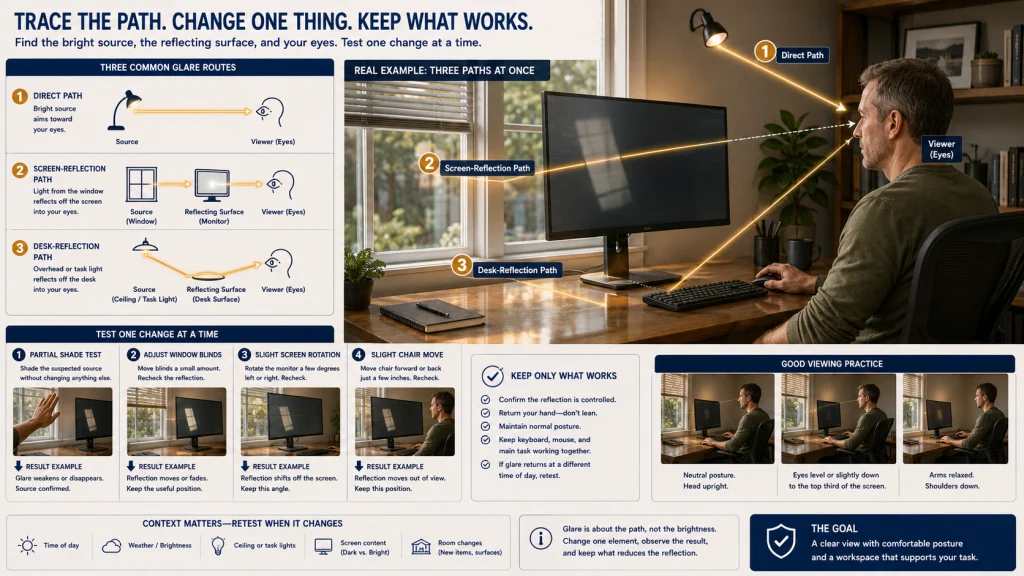
Trace the Source to the Reflecting Surface, Screen, and Viewer
Once the bright source is named, trace the path rather than moving every object at once. The reflection exists because the source, surface, and viewer currently form a workable angle.
Source-screen-viewer diagram:
Direct path
Bright source → viewer’s eyes
Screen-reflection path
Window or lamp → monitor surface → viewer’s eyes
Desk-reflection path
Ceiling light or window → polished desktop → lower field of view
Test
Move one element slightly → observe whether the reflection moves, weakens, or disappears → keep the change only if the workstation remains usable
Use small tests. Shade the suspected source briefly, rotate the screen slightly, lower a blind partway, or move the chair a few inches without changing the working posture permanently. If the bright patch changes with the test, the path has been identified.
Tracing one path at a time prevents a common frustration: closing every blind, darkening the room, and still seeing a lamp or polished surface reflected in the screen.
Rotate or Move the Screen and Desk Before Changing the Body Position
A person can escape a reflection by leaning to one side, lowering the head, or rotating the chair. The image may become readable, but the workstation now depends on holding a compensating position.
Where the room allows it, place the monitor so the screen is not facing directly toward or directly away from a bright window. A position more perpendicular to the window often changes the reflection path while preserving daylight in the room.
Test these changes in order:
- Rotate the display slightly while keeping the main task centered.
- Move the screen sideways or change its distance without losing readable positioning.
- Reorient the desk if the reflection is built into the room direction.
- Restore the keyboard, pointer, chair, and monitor to a coordinated working line.
A glare fix should not push the display so far to the side that the user spends the day turned toward it. Preserve readable monitor height and distance while testing light geometry.
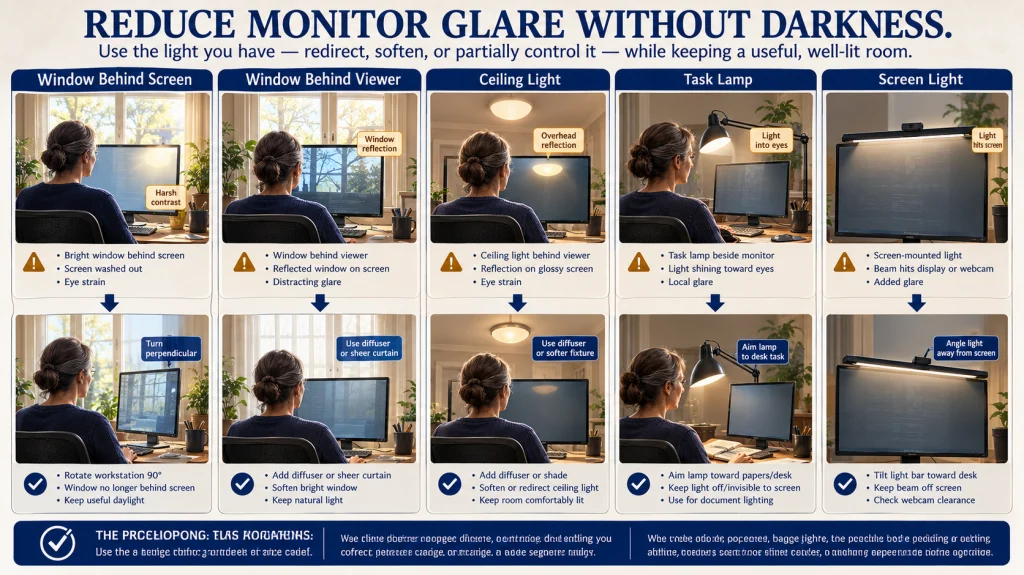
Position Task Lights and Use Blinds or Diffusers Without Darkening the Room Unnecessarily
Closing every blind can remove a window reflection while creating a dim room with a very bright screen at its center. Turning off every light can do the same. The goal is not darkness. It is a more even visual environment with useful task light and fewer bright sources in the reflection path.
| Window-and-lamp orientation map | Potential issue | Adjustment to test |
|---|---|---|
| Window directly behind the screen | Bright window surrounds the display and increases contrast | Rotate the workstation, soften daylight, or reposition the screen |
| Window directly behind the viewer | Window shape reflects from the screen | Turn the screen and desk more perpendicular to the window or manage the daylight |
| Ceiling light above or behind the viewer | Fixture appears on a glossy display | Change screen angle, diffuse the source, or adjust fixture use when appropriate |
| Task lamp beside the monitor | Lamp shines into the eyes or across the screen | Aim the light toward the document or desk task and away from the display surface |
| Light bar or screen-mounted light | Beam reaches the screen, glossy desk, or webcam | Verify angle, attachment, display compatibility, and the actual illuminated zone |
Blinds, shades, and curtains differ in how precisely they control daylight. A partial adjustment may remove the reflection while preserving useful room light. Diffusion can soften a source without turning the workspace into a dark enclosure.
Whole-room lighting plans, sensory comfort, color temperature preferences, and broader environmental design belong to a separate home-lighting decision. The focus here remains the computer workstation and the reflection path around it.
Clean the Screen and Reduce Polished Nearby Surfaces
Dust, fingerprints, streaks, and cleaning residue can scatter light across the display. A reflection that was once localized may become a hazy bright area, especially on dark screen content.
Turn off and clean the display only according to its instructions. Use approved materials and methods, avoid spraying liquid directly into openings, and do not assume that a household glass cleaner is safe for a monitor coating.
Then inspect nearby surfaces. A polished white desk, glass desktop, glossy picture frame, metallic lamp base, or pale device can send light toward the screen or eyes. Moving the object, changing its angle, or using a less reflective work surface in the immediate zone may reduce the problem without altering the monitor.
Nora’s observation: Matte and glossy labels do not tell the whole story. I also look at how easily the surface shows fingerprints, what cleaning method the coating requires, whether a filter can attach without damaging it, and whether the desk finish below the monitor is reflecting light back into the user’s view.
Adjust Brightness, Contrast, Text, and Tilt for Readability
Display settings matter after the reflection path is understood. Brightness should support readable content in the surrounding light, not serve as the only response to a bright patch on the screen.
Adjust one variable at a time:
- Set brightness so the screen does not appear dramatically brighter or darker than the nearby work area.
- Use contrast and application themes that keep text and controls readable.
- Increase text size or scaling before moving closer to small content.
- Use screen tilt only when it improves visibility without creating an awkward viewing position.
- Check dark and light applications because reflections can appear differently on each.
A tilted screen can redirect one reflection and create another. It can also change the apparent position of the display relative to the eyes. Recheck height, distance, and readability after every angle change.
For the wider workstation sequence, use the ergonomic desk setup rather than treating display brightness as an isolated decision.
Check Each Screen Separately in a Dual-Monitor Setup
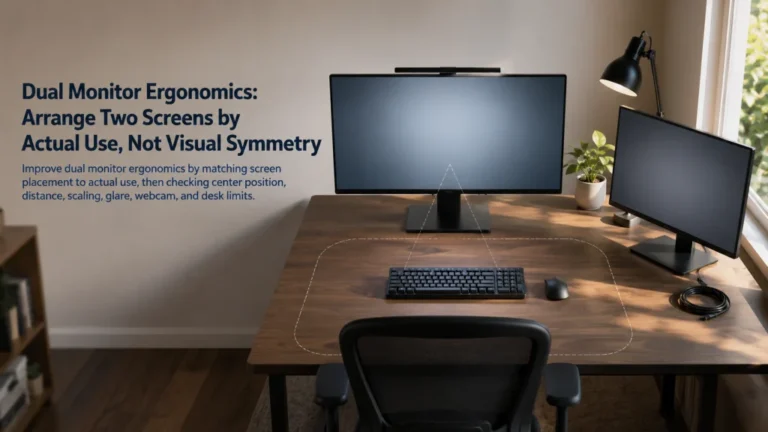
Two monitors can reflect different sources even when they sit side by side. One display may face a window more directly. The second may have a glossier coating, different tilt, higher brightness, or a darker application that makes reflections more visible.
Check each screen from the actual sitting position:
- Identify the reflection source on the primary and secondary display separately.
- Compare screen coating, brightness, contrast, tilt, and distance.
- Observe whether angling both screens inward creates a new lamp or window reflection.
- Keep the primary task centered while adjusting the affected display.
- Recheck webcams, documents, and task lights after the screens move.
Do not lower the brightness of both screens simply because only one catches the light. A mixed pair may need different settings and angles while preserving similar text readability.
Dual monitor ergonomics covers primary-versus-equal use, shared viewing fields, screen mismatch, documents, webcam position, and desk constraints.
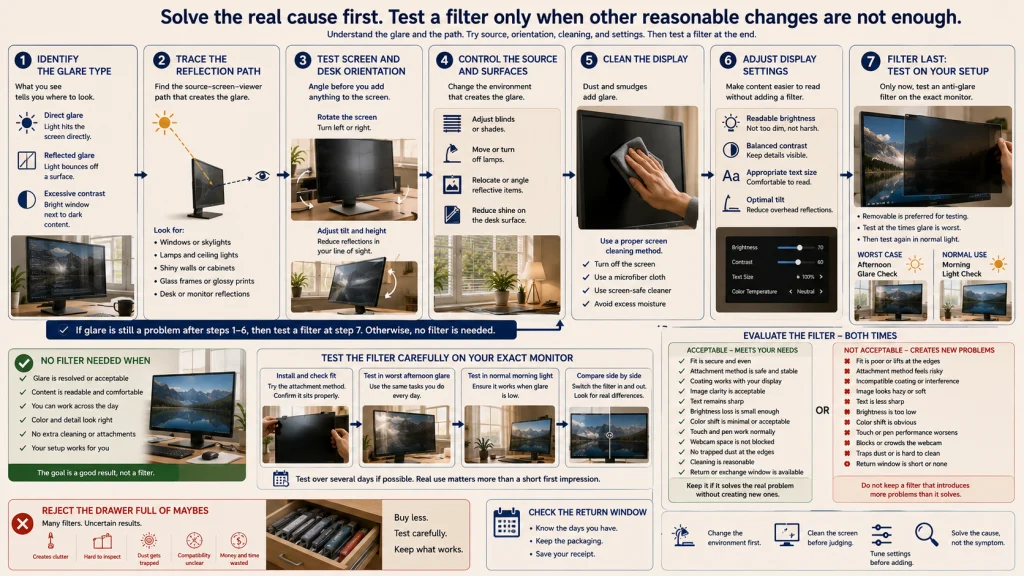
Evaluate an Anti-Glare Filter Only After Source Control Is Insufficient
An anti-glare filter can be useful when the source cannot be moved, shaded, diffused, or redirected enough for the workstation to remain readable. It should not be the first response to an unidentified reflection.
Filter-last decision ladder:
- Identify whether the problem is direct glare, reflected glare, or excessive contrast.
- Trace the source-screen-viewer path.
- Test screen and desk orientation.
- Manage the window, lamp, and nearby reflective surfaces.
- Clean the screen and adjust readable display settings.
- Test an accessory only when the remaining source cannot be controlled sufficiently.
- Verify fit, attachment, coating compatibility, clarity, brightness, color, touch function, webcam clearance, and return terms.
A filter can reduce one reflection while darkening the image, softening text, altering color, trapping dust, or interfering with touch and camera functions. It may also create a second reflective layer when its surface or fit does not match the display.
Nora’s observation: I test a filter during the worst glare period and again when the room returns to normal light. A screen that looks calmer at 3 p.m. may feel unnecessarily dim or soft in the morning. That second check matters because a filter should improve the difficult hours without making the rest of the day harder to read.
Route Whole-Room Lighting and Product Selection to the Correct Decision
When the issue involves the entire room rather than one workstation, the next decision may include fixture placement, daylight control, sensory comfort, shared activities, and lighting across different times of day. Those questions extend beyond a single monitor reflection.
When the remaining limitation requires a filter, monitor hood, adjustable lamp, blind, mount, or another accessory, move to ergonomic equipment choices with a precise problem statement. Compare products only after naming the source, screen, attachment requirement, and compatibility risk.
A useful question is: “I cannot change this afternoon window path, and the remaining reflection appears on this specific display from my normal sitting position.” That is more actionable than asking for the best anti-glare product without describing the light geometry.
For the wider relationship among posture, visibility, movement, and work habits, revisit posture and ergonomics.
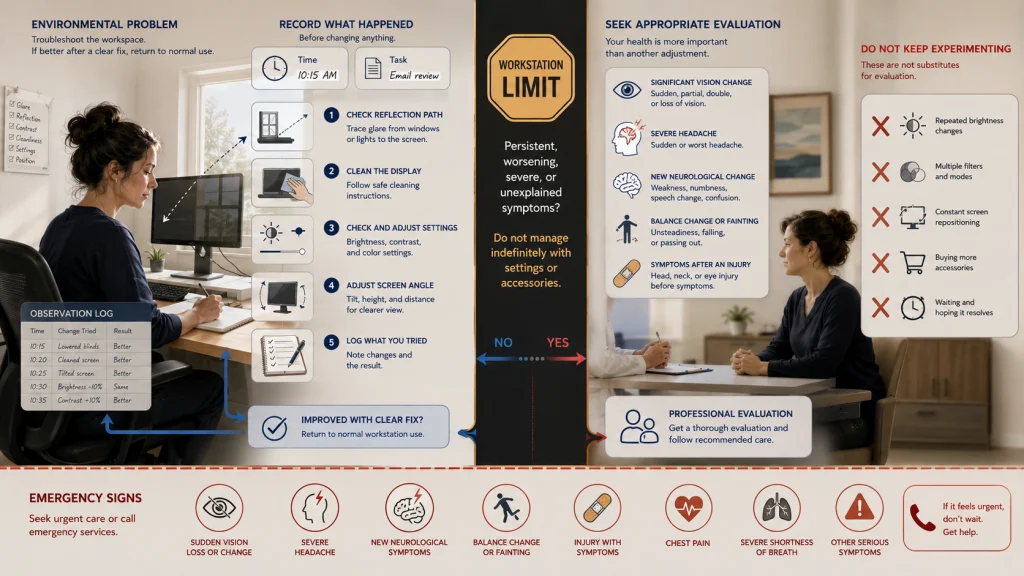
Seek Appropriate Care for Persistent Vision Changes or Unexplained Symptoms
This troubleshooting process can identify direct light, reflections, excessive contrast, dirty surfaces, display settings, and compensating workstation positions. It cannot diagnose dry eye, migraine, a vision disorder, light sensitivity, a headache disorder, or another medical condition from symptoms or a workstation photograph.
Visual-symptom boundary: Significant vision change, severe headache, new or worsening neurological symptoms, balance change, fainting, symptoms after an injury, or other severe or unexplained changes require appropriate professional evaluation. Chest pain, severe shortness of breath, fainting, or emergency signs require immediate appropriate help.
Persistent or worsening eye discomfort, headaches, visual disturbance, or light sensitivity should not be managed indefinitely by changing brightness, buying filters, or repeatedly moving the screen. Record when the symptoms occur, which task is involved, and what ordinary environmental changes have been tried, then seek qualified guidance.
Identify the Source, Path, Geometry, Settings, and Last-Resort Accessory
Start when the glare actually appears. Identify the light source, the surface that reflects it, the display orientation, and the viewer position. Trace that path before increasing brightness or changing the body position.
Rotate or move the screen, manage windows and task lights, clean the display, reduce nearby polished surfaces, and adjust text, contrast, brightness, and tilt for readable content. In a dual-monitor setup, test each screen separately because the same room can create two different reflection problems.
Consider an anti-glare filter only when the source cannot be controlled sufficiently and the accessory is compatible with the exact display. The goal is not a dark room or a screen bright enough to overpower everything around it. It is a workstation where the page remains readable without leaning around a patch of light.
FAQs
☀️ Why does raising screen brightness not remove glare?
Brightness changes the displayed image, but a reflection follows a physical path from the source to the screen and then to the viewer. Changing that path usually requires moving, shading, diffusing, or redirecting one of those elements.
🪟 Should a monitor be perpendicular to a window?
A more perpendicular orientation often reduces direct window contrast and screen reflections, but the final position still depends on the room, screen coating, desk location, and the user’s viewing line.
💡 Where should a desk lamp go?
Aim the lamp toward the paper or desk task and away from the screen surface and eyes. Test the lamp from the normal sitting position because a small angle change can create or remove a reflection.
🧼 Can a dirty screen make glare worse?
Dust, fingerprints, and streaks can scatter light and create a hazy bright area. Clean the display only with methods and materials approved for its coating.
🖥️ Do matte screens eliminate reflections?
No. Matte surfaces can diffuse reflections, but they do not remove the light source or guarantee readable contrast. Coating quality, room light, cleaning, and screen position still matter.
🔆 Should both monitors use the same brightness?
Not necessarily. Different coatings, applications, angles, and light exposure may require different settings. Aim for comparable readability rather than identical control values.
🛡️ Is an anti-glare filter worth using?
It may help when the remaining source cannot be controlled. Verify fit, attachment, image clarity, brightness, color, touch function, cleaning requirements, webcam clearance, and return terms first.
⚠️ When should I stop treating glare as a workstation problem?
Seek appropriate evaluation for significant vision change, severe headache, persistent or worsening visual symptoms, unexplained neurological changes, balance problems, fainting, or symptoms after an injury.