Desk height ergonomics is not solved by matching one published number. A fixed desk can be too high for the hands, too low for the legs, or thick enough that the chair cannot reach a workable position. Start with the actual keyboard and mouse surface, then check shoulder position, forearm support, chair range, foot support, and under-desk clearance. Use the safest reversible adjustment that solves the real constraint, and leave product buying or structural changes until the limitation is clearly defined.
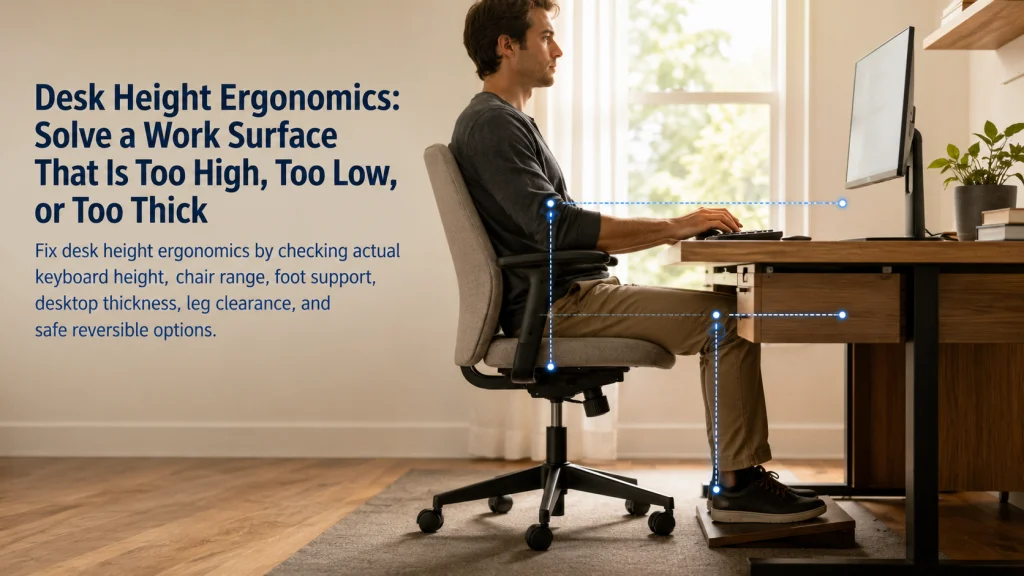
One Fixed Desk Can Create Two Different Mismatches
Two people sit at the same fixed desk. The first keeps the chair low enough for solid foot support, but the desktop now sits high relative to the hands. The shoulders rise and the forearms reach upward toward the keyboard. The second raises the chair until the keyboard feels easier, then notices that the feet no longer reach the floor securely.
The desk has one published height. The users have different body proportions, chair ranges, input devices, and clearance needs.
| User response | What improves | What new constraint appears |
|---|---|---|
| Keeps the chair lower | Feet remain supported | Keyboard and mouse sit too high for relaxed shoulders and forearms |
| Raises the chair | Hands reach the input surface more easily | Feet lose support and the chair may approach the desk underside |
A fixed work surface creates a chain of dependencies. Moving the chair changes the relationship among the hands, elbows, feet, thighs, drawers, and monitor. The goal is not to find a magic desk number. It is to identify which part of that chain is limiting the setup.
Define the Surface, Input Height, Thickness, Clearance, Chair Range, and Foot Support
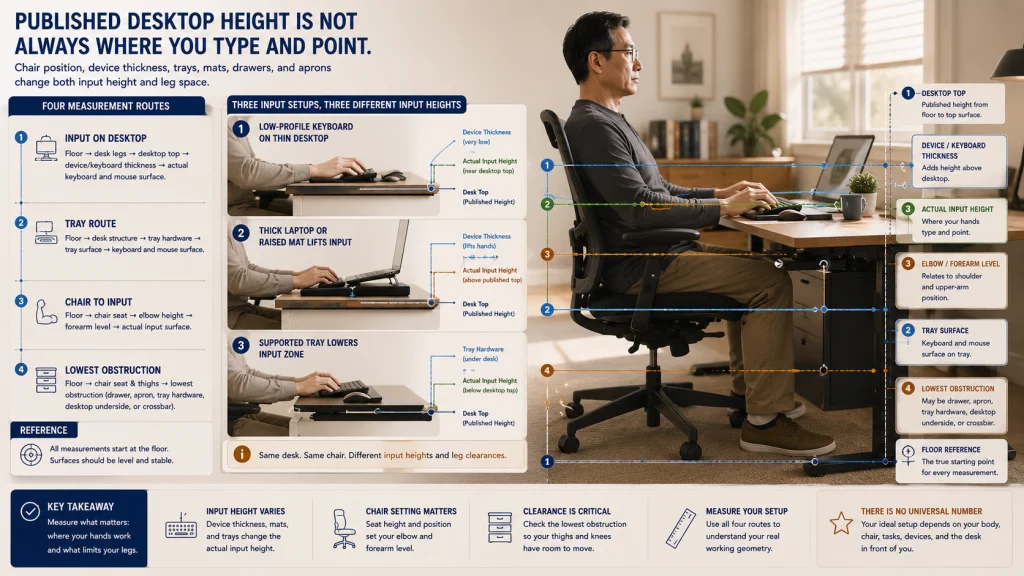
Work-surface height is the height of the desktop or table from the floor. Input height is the height where the hands actually type and point. Those two heights may be identical, but they can differ when the keyboard sits on a tray, on a thick device, or on top of another object.
Desktop thickness is the vertical depth of the work surface. An apron is a supporting panel or frame beneath the front or sides of a desk. Drawers, crossbars, cable channels, and shelves can also reduce usable space below the top.
Clearance is the space available for thighs, knees, feet, chair arms, and movement under the desk. Chair range is the span of stable seat heights the chair can provide. Foot support means the feet rest securely on the floor or on a stable support when the chair is raised.
A desk can have a familiar top height and still fail because the input surface is higher than expected or the underside is too thick for the user’s legs. Published height alone does not reveal the whole working geometry. That is why two desks listed at the same height can feel completely different once a chair, keyboard, drawer, and pair of knees enter the picture.
The broader home office ergonomics guide connects this surface problem with chair support, monitor position, lighting, and the rest of the room.
Evaluate the Actual Typing and Pointing Task
A desk may feel acceptable while reading and uncomfortable once typing begins. The input task reveals whether the surface is forcing the shoulders upward, the forearms away from the body, the wrists into a repeated bend, or the mouse beyond a comfortable reach.
Sit in the chair position that provides stable support, then use the real keyboard and pointer for several minutes. Notice:
- Whether the shoulders stay relaxed or begin to lift.
- Whether the elbows remain near the body or drift outward.
- Whether the forearms approach the input surface without reaching upward.
- Whether the wrists remain close to a neutral line during ordinary use.
- Whether the mouse can stay beside the keyboard.
- Whether the front edge of the desk presses into the forearms.
- Whether papers, a laptop, or a wide keyboard push the active input area farther away.
The test should use the actual task, not an empty desk pose. A surface may feel fine during a quick email and become frustrating during an hour of typing or detailed pointer work. A person who types heavily may need a different solution from someone who mainly reads, draws, or uses a touch interface.
The detailed guide to keyboard and mouse position covers the hand zone, pointing reach, and input-device relationship.
Identify the Surface That Actually Sets the Hand Height
The desktop is not always the true input surface. A laptop keyboard adds the thickness of the device. A separate keyboard may sit on a tray below the desk. A tablet, drawing surface, wrist support, or thick desk mat can change where the hands meet the work.
Surface-height versus input-height diagram:
Floor → chair seat height → elbow and forearm level → actual keyboard and mouse surface
Desktop route: floor → desk legs → desktop top → keyboard or device thickness → input height
Tray route: floor → desk structure → tray mounting position → tray surface → keyboard thickness → input height
Clearance route: floor → chair seat and thighs → drawer, apron, tray hardware, or desktop underside
This distinction explains why two desks with the same top height may feel different. One has a thin surface and a low-profile keyboard. The other adds a thick laptop, raised mat, or deep front edge. Measuring only the floor-to-desktop distance misses the place where the hands actually work, which is often the first clue that the published number is not the real problem.
Check Thigh, Knee, Foot, Drawer, and Cable Clearance
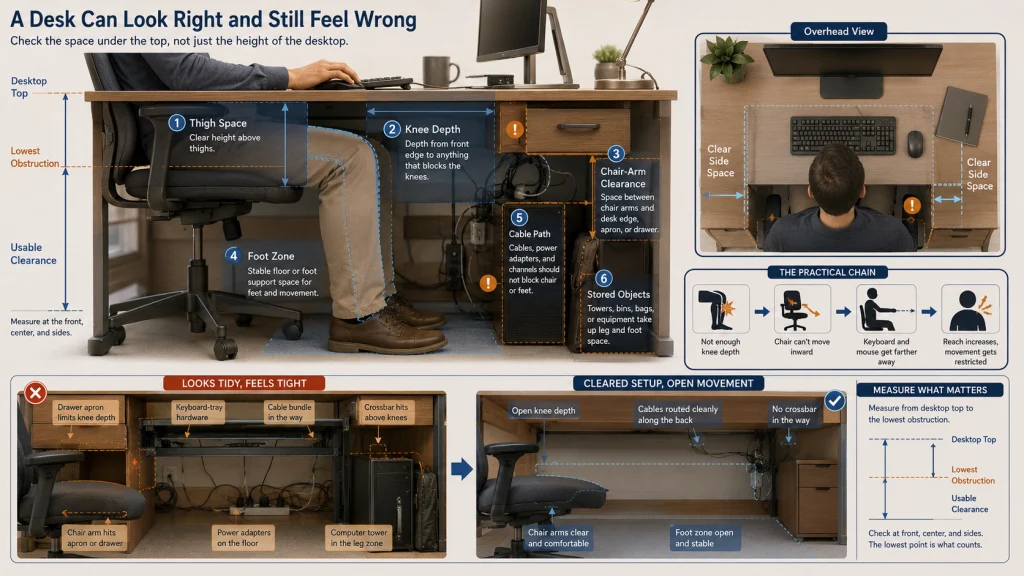
Raising the chair can improve access to a high keyboard while creating pressure or crowding under the desk. A drawer that seemed harmless at the original chair height may block the thighs after the seat rises. A cable tray can reduce knee space, while a wide desk apron can prevent the chair from moving close enough.
| Clearance audit | What to inspect | Why it matters |
|---|---|---|
| Thigh space | Gap between the thighs and desk underside, drawer, apron, or tray hardware | The chair needs enough vertical room without pressure or trapped movement |
| Knee space | Front and side clearance during ordinary sitting and position changes | Limited depth can force the chair and hands farther from the desk |
| Foot space | Floor area, supports, cables, boxes, and desk crossbars | The feet need a stable place rather than a narrow gap |
| Chair arms | Whether the arms collide with the desk edge or drawer | Collisions may prevent a close input position |
| Cables and power | Bundles, adapters, outlets, and hanging loops below the desk | Cables can restrict feet, chair travel, or safe movement |
| Stored objects | Computer towers, bins, bags, and unused equipment | Storage can quietly remove usable leg space |
The underside matters as much as the top. A desk can be low enough for the keyboard and still feel impossible because a deep drawer presses into the thighs or prevents the chair from moving inward. This is the kind of constraint people often discover only after raising the chair and realizing there is nowhere left for the legs to go.
When the Desk Is Too High, Compare Chair Elevation With a Lower Input Zone
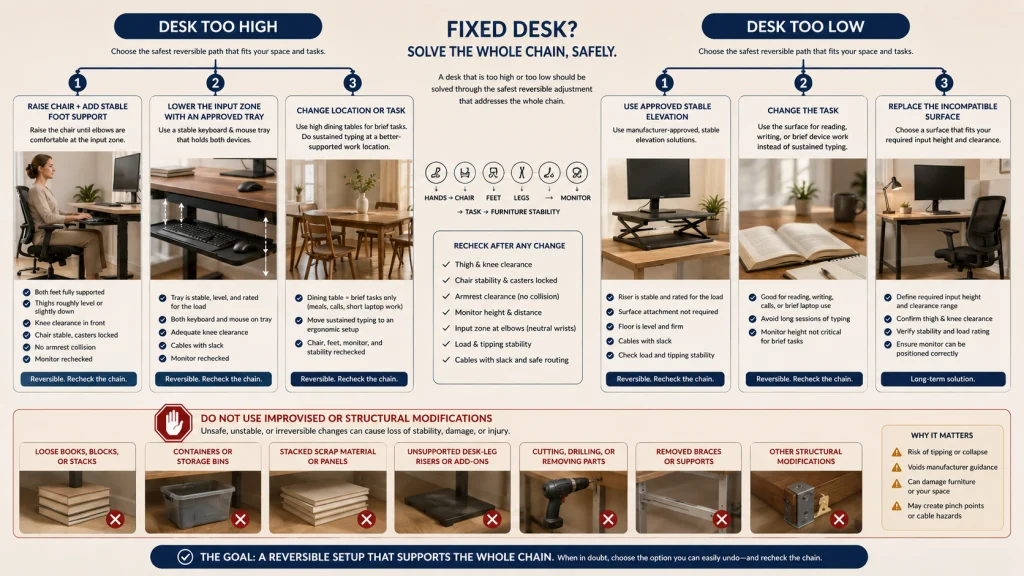
A high desk often leads to one of two responses. The user raises the chair toward the keyboard, or the user stays lower and reaches upward. Neither response should be evaluated alone because each changes the rest of the setup.
| Too-high desk option | What it may solve | What must also be checked |
|---|---|---|
| Raise the chair and add stable foot support | Brings the hands closer to the desktop input height | Foot support, thigh clearance, chair stability, armrest collision, and monitor position |
| Lower the input zone with an approved tray or supported surface | Allows the chair to remain at a more useful height for the feet and legs | Tray load, range, keyboard and mouse space, knee clearance, stability, and product instructions |
| Change the task location | Moves sustained typing away from a dining table or high fixed surface | Whether the alternate location supports the chair, screen, and daily routine |
A foot support is useful only when it is stable, large enough for both feet, and compatible with the chair and floor. A narrow support can make the feet compete for space, while a tall caster base can change how much lift the chair actually needs. The floor surface also matters because a support that slides on hard flooring or sinks into carpet will not behave the same way during a full workday. A keyboard tray is useful only when it holds both input devices securely and does not remove necessary leg space.
In many homes, the dining table becomes a work surface because it is available, not because it fits sustained computer use. That can be perfectly workable for a quick message and exhausting when the temporary arrangement quietly becomes the normal desk. The most honest solution may be to reserve it for brief tasks and move longer typing to a better-supported location.
When the Desk Is Too Low, Compare Safe Elevation, Task Changes, and Replacement
A low desk can force the knees against the underside, prevent the chair from moving close, or place the keyboard below a useful hand position. Lowering the chair may create a cramped knee angle or make the seat feel too low for standing up comfortably.
Consider three categories of response. The goal is not to make a low desk look taller at any cost, but to decide whether the surface can be adapted safely and repeatably:
- Manufacturer-approved elevation: Use only stable components and methods permitted for the exact desk. Verify load, attachment, floor protection, and tipping resistance.
- Task change: Keep the surface for reading, paperwork, or brief device use while moving sustained keyboard work elsewhere.
- Replacement: When the desk cannot provide useful input height and clearance within safe instructions, define the required range before comparing another work surface.
Do not improvise with loose blocks, books, containers, or stacked scrap material. Raising a loaded desk changes stability, caster behavior, cable reach, and the relationship among all attached components.
This article does not provide woodworking, drilling, cutting, or structural-modification instructions. A desk that requires unsupported alteration to become usable has moved beyond a reversible setup adjustment.
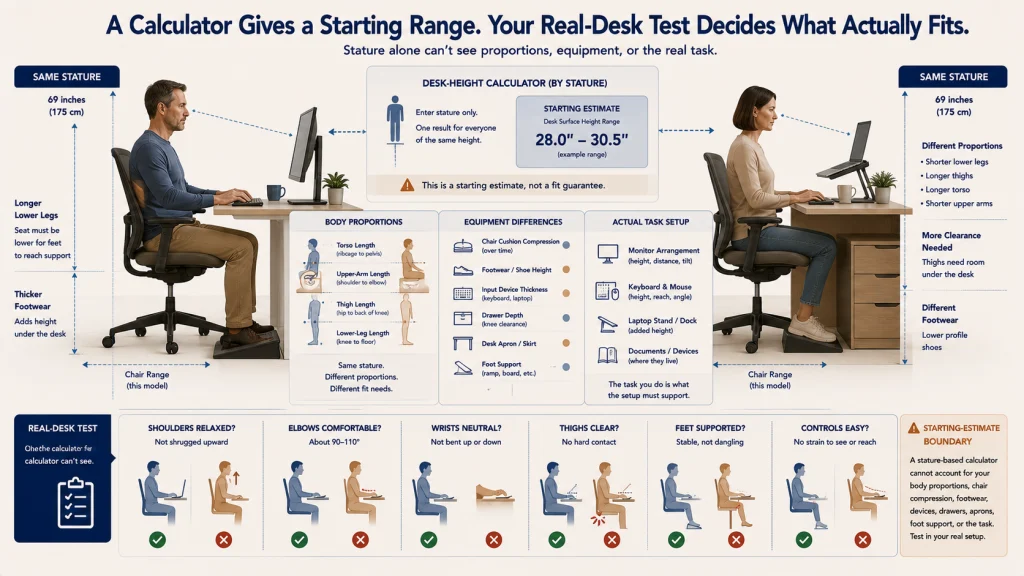
Understand Why Height Calculators Cannot Guarantee Fit
Desk calculators often begin with stature because it is easy to enter. Stature does not reveal lower-leg length, thigh length, torso proportions, upper-arm length, chair cushion compression, footwear, or the thickness of the input device.
Calculator-limit box: A suggested desk height is a starting estimate, not a guaranteed fit. It cannot see the actual keyboard surface, drawer depth, apron, chair range, foot support, monitor arrangement, or the way a person uses the desk.
Two people of the same height can need different chair and input relationships. One may have longer lower legs and need a higher seat. Another may need more thigh clearance or a lower keyboard surface. Equipment can widen the difference further.
Use a calculator to narrow a range only after naming the task and equipment. The final test happens at the real desk with the real chair, keyboard, mouse, and clearance. If the number says the desk should fit but the shoulders still rise or the thighs still collide with the underside, the body and furniture are providing more useful information than the formula.
Audit Desktop Thickness, Edges, Monitor Depth, and Frequent-Use Zones
A thick desktop can place the keyboard at a workable height while taking away the space needed for thighs and chair arms. A deep front edge can press into the forearms. A shallow desk can force the monitor too close once the keyboard and pointer occupy the front zone.
Review the whole work surface:
- Measure the top and the lowest obstruction beneath it.
- Identify drawers, aprons, rails, cable channels, and tray hardware.
- Check whether the front edge is hard, sharp, or positioned where the forearms rest.
- Reserve the closest area for the keyboard, pointer, and other frequent-use items.
- Keep lower-frequency objects from pushing the inputs forward.
- Confirm that the monitor can sit at a readable distance without forcing the keyboard off the desk.
- Check whether speakers, a laptop, documents, or a dock consume the depth needed for the main task.
Published desk height alone cannot reveal these limits. A desk may be described by one top dimension while the useful keyboard level and under-desk space tell a very different story. This is also why assembly details matter: a front rail, cable tray, or drawer added during setup can change the usable clearance after the purchase decision has already been made.
The complete ergonomic desk setup explains how to coordinate chair, feet, input devices, and monitor after the desk constraint is understood.
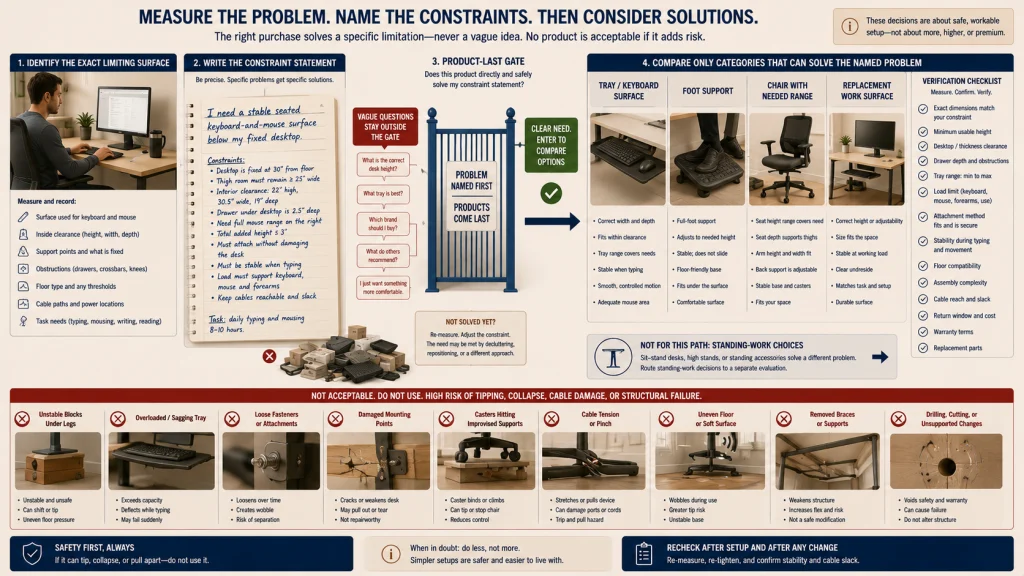
Define the Constraint Before Comparing Equipment or Standing Use
If the analysis shows that the desk lacks usable height range, clearance, input support, or stable adjustment, move to ergonomic equipment choices with a specific problem statement. Compare desks, chairs, foot supports, and keyboard trays only after the required function is clear.
Nora’s observation: A desk listing can make height look like the main decision, but I also look at the minimum usable height, desktop thickness, drawer depth, caster height, foot-support space, floor protection, assembly steps, and the effort involved in returning a large item. Those details often decide whether the setup can actually reach the position the specification seemed to promise.
A useful product question sounds like this: “I need a stable seated input surface that can sit below this fixed desktop while preserving room for my thighs and mouse.” A vague question such as “What is the correct desk height?” invites another generic number rather than a solution to the actual limitation. The clearer question also makes assembly and return friction easier to judge before a large box arrives at the door.
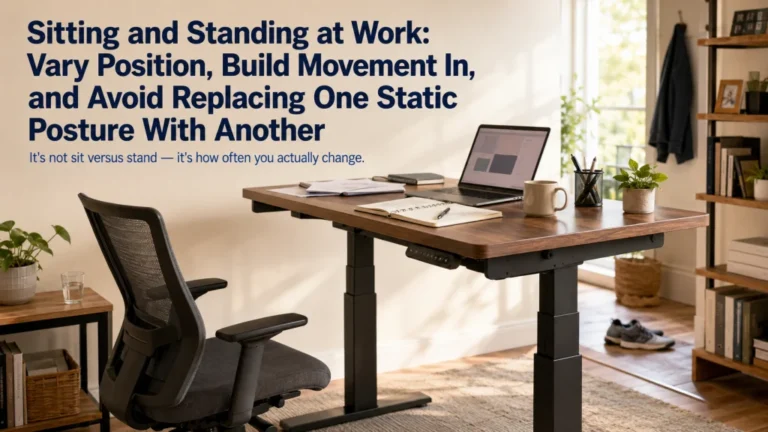
Sitting and standing introduce a separate set of task, support, transition, and schedule decisions. Use the guide to sitting and standing at work rather than copying seated desk logic into a standing routine.
Product-last and stability warning: Do not buy a tray, riser, foot support, chair, or new desk until the limiting surface, input height, clearance, and support requirement are named. Verify exact dimensions, load limits, attachment method, stability, floor compatibility, assembly, and return terms for the equipment being considered.
Reject Unstable Blocks, Overloaded Trays, and Unsupported Modifications
A reversible adjustment should not create a tipping, collapse, or electrical hazard. Loose blocks under desk legs can shift. An overloaded keyboard tray can sag or detach. Removing braces, cutting structural parts, drilling into unknown materials, or changing a desk outside its instructions can weaken the work surface. A fix that requires constant caution is not a stable daily solution.
Stop and reassess when:
- The desk rocks, twists, or shifts during typing.
- A tray flexes, binds, or cannot hold both keyboard and pointer.
- Fasteners loosen or mounting points show damage.
- The chair catches on improvised supports.
- Cables become stretched, pinched, or suspended under tension.
- Raising the desk changes caster contact or creates uneven floor pressure.
- The adjustment requires altering structural parts without approved instructions.
The safest answer may be to change the task location or replace the incompatible surface. A setup is not improved when better hand height is purchased with unstable furniture or lost leg clearance.
Stop Setup Experiments for Persistent or Neurological Symptoms
This article can help identify a high input surface, low clearance, unsupported feet, excessive reach, or furniture limitation. It cannot diagnose carpal tunnel syndrome, tendon disorders, nerve compression, spinal conditions, vision disorders, headache disorders, repetitive strain injury, or another medical condition from symptoms or workstation photographs.
Stop condition: New, severe, persistent, worsening, or unexplained pain; numbness; weakness; tingling; loss of hand function; significant vision change; severe headache; balance change; or symptoms after an injury require appropriate professional evaluation. Chest pain, severe shortness of breath, fainting, or other emergency signs require immediate appropriate help.
Do not keep raising the chair, changing trays, or altering furniture in an attempt to determine the cause. Record the task, timing, positions, and ordinary adjustments already tried, then seek qualified guidance.
Identify the Surface, Input Height, Clearance, Support, and Safest Reversible Adjustment
Begin with the actual typing and pointing surface, not the published height of the desk. Check whether the shoulders lift, whether the hands reach upward, whether the chair can move close, and whether the feet remain supported when the chair changes height. The problem usually becomes clearer once the focus shifts from “What number should this desk be?” to “Which part of this setup is forcing the compromise?”
Then inspect desktop thickness, drawers, aprons, tray hardware, cables, chair arms, thighs, knees, and foot space. A high desk may call for chair elevation with stable foot support or a lower approved input zone. A low desk may require an approved elevation method, a task change, or replacement.
The final goal is not one universal desk number. It is a stable relationship among the surface, inputs, chair, feet, legs, and task that still works on an ordinary morning, after the chair rolls into place and the real work begins. For the wider relationship among work posture, room setup, movement, and daily habits, return to the posture and ergonomics guide.
FAQs
📏 Is there one correct desk height?
No. Fit depends on the actual keyboard and mouse surface, body proportions, chair range, foot support, desktop thickness, clearance, and task. A published number can only be a starting estimate.
⬆️ What should I do when the desk is too high?
Compare raising the chair with stable foot support against lowering the input zone with an approved tray or supported surface. Check thigh clearance, chair stability, monitor position, and mouse space before choosing.
⬇️ What should I do when the desk is too low?
Consider only manufacturer-approved elevation, changing the task location, or replacing the incompatible desk. Do not use loose blocks or unsupported structural modifications.
🪑 Should I raise my chair to match a fixed desk?
Raising the chair may improve hand height, but it also changes foot support, thigh clearance, armrest collision, and monitor position. Evaluate the entire chain rather than the chair alone.
⌨️ Does a keyboard tray solve a high desk?
It may lower the input zone when it is stable, properly installed, and large enough for the keyboard and pointer. Verify its range, load, knee clearance, and exact installation requirements.
🗄️ Can a desk drawer make the setup too low?
Yes. A drawer or apron can reduce usable thigh clearance even when the desktop height looks acceptable. Measure the lowest obstruction, not only the top surface.
🧮 Should I trust a desk-height calculator?
Use it only as a starting range. It cannot account for body proportions, input-device thickness, the chair, foot support, drawers, or the actual task.
⚠️ When should I stop changing the workstation?
Stop treating the desk as the only explanation when pain is persistent or worsening, or when numbness, weakness, tingling, loss of hand function, significant vision change, severe headache, balance change, or symptoms after injury are present. Seek appropriate professional evaluation.