Dual monitor ergonomics starts with how the screens are actually used, not with making the hardware look perfectly symmetrical. When one display carries most of the work, center that screen and keep the secondary display close enough for brief reference. When work is divided more evenly, center the shared visual field and arrange both screens so switching does not require repeated wide turning. Match readable text, distance, brightness, and height where practical, then account for documents, webcam placement, desk depth, cables, stands, and any laptop used as the second screen.
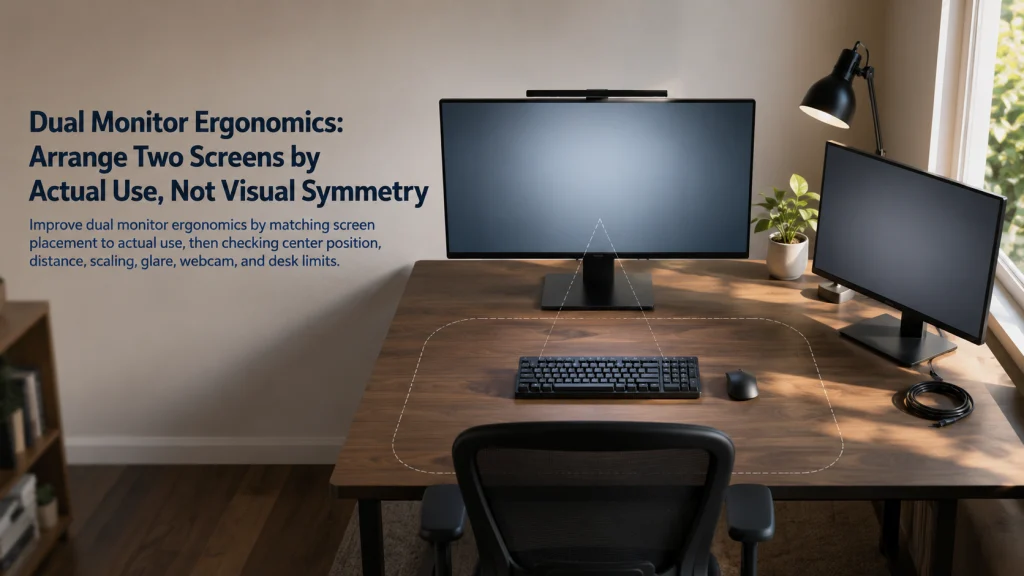
The Same Two Monitors Need Different Centers in a 90-10 and a 50-50 Workflow
Imagine two identical monitors on the same desk. In the first workflow, the left screen holds the document, spreadsheet, or design file for about 90 percent of the session. The right screen carries messages, references, and occasional previews. In the second workflow, one screen holds source material while the other holds the active draft, and the eyes move between them throughout the task.
The hardware has not changed. The correct center has.
| Use pattern | Where the active work lives | What should face the user | Common visual mistake |
|---|---|---|---|
| 90-10 primary-secondary use | One screen carries nearly all typing, reading, and pointer work | The primary screen and keyboard | Centering the seam and spending the day turned toward the primary screen |
| 50-50 roughly equal use | Work moves between both screens throughout the session | The shared visual field or center boundary | Placing one display straight ahead and the other far to the side |
A symmetrical desk can feel orderly while the body quietly works around it. The useful arrangement is the one that places the most frequent task closest to the natural center and keeps secondary information within a manageable visual field.
Define the Screen Roles Before Moving the Hardware
A primary display carries most of the active work. It usually holds the main document, application, browser window, editing timeline, or communication task that receives the most typing and pointer input.
An equal-use pair describes two displays that share the task often enough that neither can be treated as occasional reference. A secondary reference screen holds information that is glanced at, checked briefly, or used to support the main task.
The shared visual field is the combined screen area a person uses without treating one display as the fixed center. Task switching is the repeated movement of attention, eyes, head, hands, or torso between screen roles.
These definitions matter because “two monitors” is not one arrangement. A writer comparing source material, a person monitoring messages beside a main application, and someone using a laptop for video calls beside a larger display all place different demands on the same desk.
The broader home office ergonomics guide connects screen placement with the chair, work surface, keyboard, pointer, and available space.
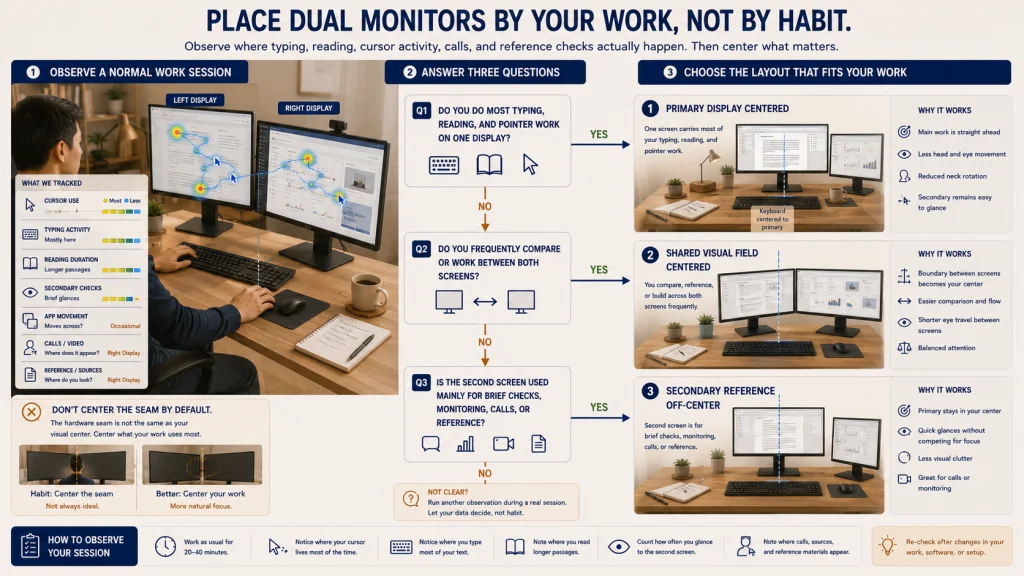
Center the Primary Display and Keyboard for Primary-Secondary Use
When one screen carries most of the work, let that display own the central position. The keyboard and active typing area should return to the same line. This can feel surprisingly relieving after a day spent unconsciously turning toward a screen that was treated as secondary only because the desk was arranged symmetrically.
The secondary display should sit beside the primary rather than pulling the entire pair into a symmetrical arrangement. Angle it inward enough that brief checks do not require a large turn, but preserve the primary screen as the place the eyes and torso naturally return to.
This arrangement often looks uneven at first, especially when the bases no longer mirror each other. That visual imbalance is not a defect when the task itself is uneven. The desk is finally reflecting the work instead of asking the user to spend the day adapting to a decorative center line.
Keep frequently used windows on the primary display. If an application repeatedly opens on the secondary screen, move or save its position so the software does not undo the physical arrangement every morning.
Center the Shared Visual Field for Roughly Equal Use
When the task moves frequently between both screens, centering only one display turns the other into a repeated side destination. A person comparing a source on one screen with a draft on the other should not feel as though every sentence requires looking away from the desk. Bring the pair together and center the shared working area.
For two similar side-by-side displays, that may place the seam near the user’s center. The screens can angle inward slightly so the outer edges do not feel much farther away than the inner edges. The exact arrangement depends on screen width, desk depth, and where the active content sits.
Do not assume that equal use requires the head to remain perfectly still. Some movement is normal. The practical goal is to avoid a workflow where every comparison demands a wide repeated turn or where the outer portions of both screens are difficult to read from the supported sitting position.
Window placement can improve the pair. Put the most important content near the inner portions when possible, especially for tasks that require rapid comparison. Toolbars, side panels, and low-priority reference areas can occupy the farther edges.
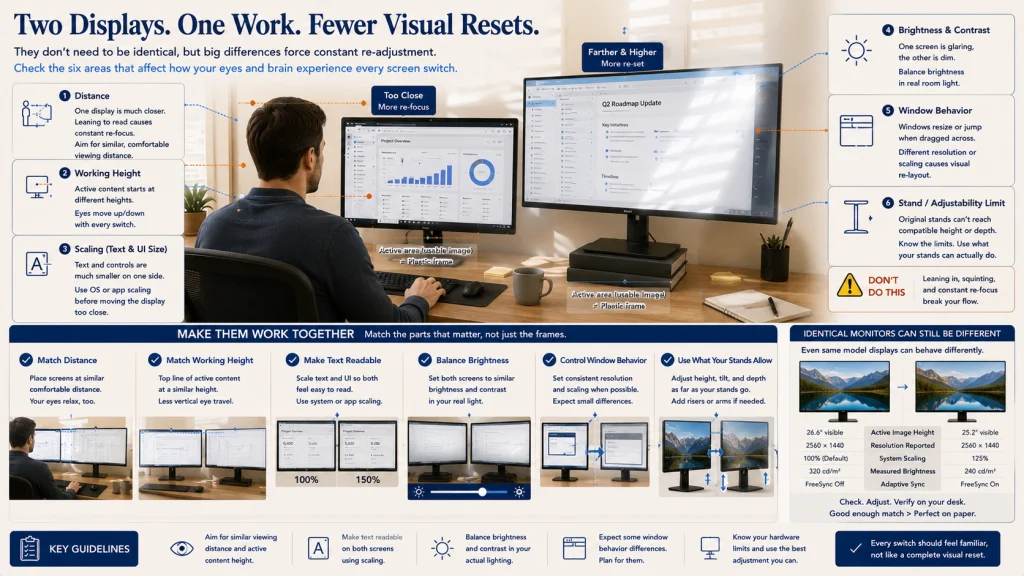
Match Height, Distance, Scaling, Brightness, and Readability Where Practical
Two screens do not need to be identical, but large differences become noticeable when attention crosses between them all day. Tiny text on one display, a bright white panel on the other, or a screen sitting several inches farther back can make every switch feel like a small reset. The aim is to keep both working areas readable without asking the eyes to renegotiate the desk each time.
| Mismatch checklist | What to compare | What to test |
|---|---|---|
| Viewing distance | Whether one screen sits noticeably closer | Move the pair or individual display so commonly used content remains readable without leaning |
| Screen height | Whether the active content begins at very different vertical positions | Align the working areas where practical rather than matching only the outer frames |
| Scaling | Whether text and controls appear much smaller on one display | Adjust application or system scaling before moving the screen closer |
| Brightness and contrast | Whether one display feels glaring or dim beside the other | Set both for comfortable readability in the actual room light |
| Resolution and aspect ratio | Whether windows change size or position sharply when moved | Test the applications that cross screens most often |
| Stand adjustability | Whether the screens can reach compatible positions | Name the hardware limit before trying to force visual symmetry |
Editorial observation: Matching monitor appearance does not guarantee matching adjustability or readable scaling. Two screens can share the same size and color while their stands, active image areas, resolution, or text rendering produce a noticeably uneven working pair.
The single-display guide to monitor height and distance explains how active content, text size, viewing distance, and task should guide each screen.
Use a Laptop as a Secondary Display Without Recreating the Attached-Keyboard Problem
A laptop beside a larger monitor adds a screen, camera, microphone, keyboard, trackpad, ports, and charging cable in one compact object. It often begins as a convenient second display, then slowly becomes the place for calls, quick replies, and occasional typing. Before long, the hands are reaching between two keyboards and the original center of the desk has disappeared.
Decide whether the laptop is acting as a computer, a secondary display, a video-call screen, or an input device. When sustained typing happens on an external keyboard, keep that keyboard and pointer close and treat the laptop keyboard as inactive. Position the laptop screen according to its actual secondary role rather than keeping the whole device centered.
If the laptop holds video calls, place it where the camera angle is usable without pushing the primary work far to the side. If it holds occasional messages or monitoring, it may sit slightly lower or farther to the side, provided the text remains readable for the frequency of use.
Do not raise the laptop and continue reaching up to its built-in keyboard during sustained work. The guide to laptop ergonomics covers the attached screen-keyboard tradeoff, external inputs, docking, and portable fallback planning.
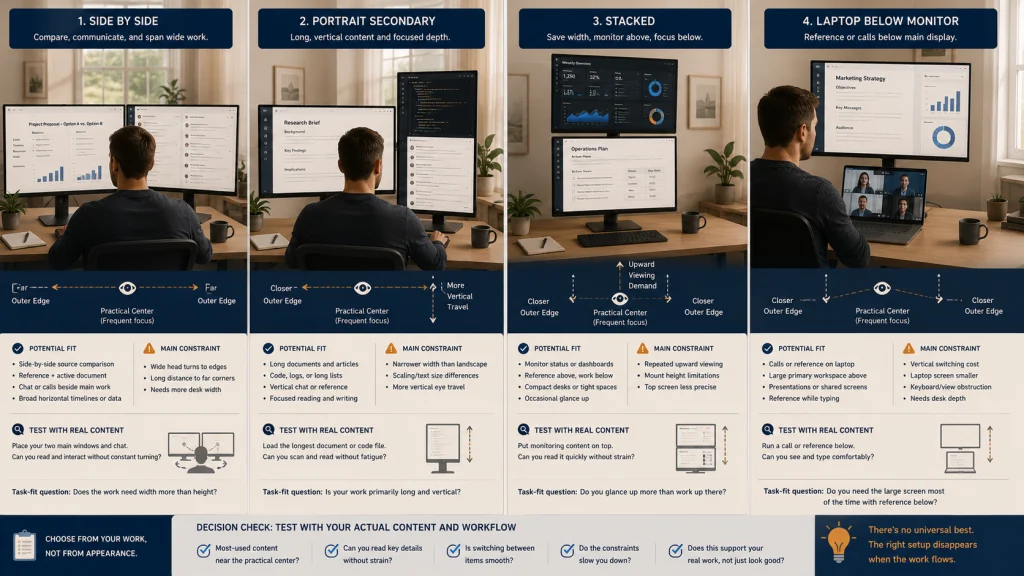
Choose Side-by-Side, Portrait, or Stacked Layouts From the Task
Screen orientation should follow the content and switching pattern. Portrait screens, stacked displays, and carefully angled pairs can look impressively purposeful in a finished workspace. The useful question arrives later, when a real document, call, or comparison task fills the screens: does the arrangement make that work easier to follow, or does it merely look specialized?
| Layout | Potential fit | Main constraint | What to test |
|---|---|---|---|
| Side by side | Comparison, reference, communication, and broad horizontal workflows | Wide outer edges and repeated side turning | Whether frequent content can remain near the center and both screens fit the desk depth |
| One portrait screen | Long documents, code, messages, or vertical reference content | Different width, text scaling, and vertical eye travel | Whether the portrait task truly benefits from the shape and remains readable |
| Stacked screens | Limited horizontal space or a secondary monitoring display above | Repeated upward viewing and limited vertical adjustability | Whether the upper screen is occasional enough for its position |
| Laptop below a monitor | Calls, messages, or reference below a larger primary display | Vertical switching, keyboard obstruction, and desk depth | Whether the laptop remains a display rather than a distant input device |
A portrait or stacked screen can serve a specific task well without becoming the default for everyone. Side-by-side placement can feel natural for comparison while becoming too wide for small desks. The arrangement earns its place by supporting actual windows and content, not by looking more specialized.
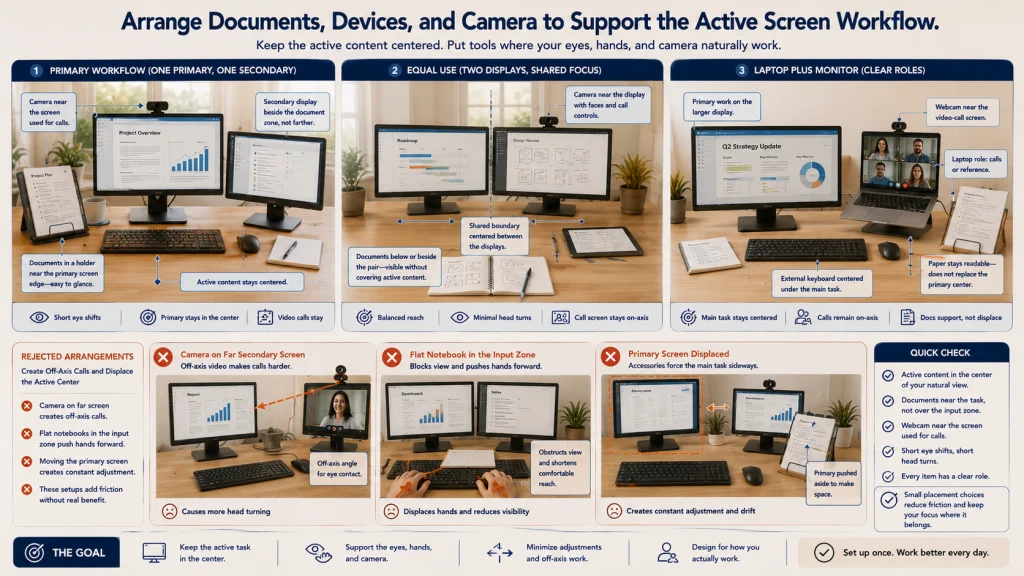
Place Documents and the Webcam Without Displacing the Main Task
Paper documents, notebooks, tablets, webcams, speakers, and lights compete for the same central space as the displays. The monitor arrangement may work perfectly until a notebook opens, a webcam is clipped on, or a printed form needs to stay visible. If those objects are added afterward, the primary screen is often pushed sideways and the original center quietly disappears.
Documents-and-webcam layout:
Primary-secondary workflow
Primary display centered with the keyboard → document holder near the primary screen edge → secondary display beside the document zone → webcam near the screen used for calls.
Equal-use workflow
Shared screen boundary centered → document holder below or beside the pair without covering active content → webcam placed near the display where faces and call controls appear.
Laptop-plus-monitor workflow
External keyboard centered with the primary task → larger display positioned for main work → laptop placed for its call or reference role → paper documents kept close enough to read without replacing the primary screen center.
A webcam on the far secondary display can make every call feel like a conversation happening beside the workstation rather than within it. A document laid flat between the keyboard and screens can push the hands forward for the rest of the session. Give the central line to the item that matters most during the task, then place supporting objects close enough to use without displacing it.
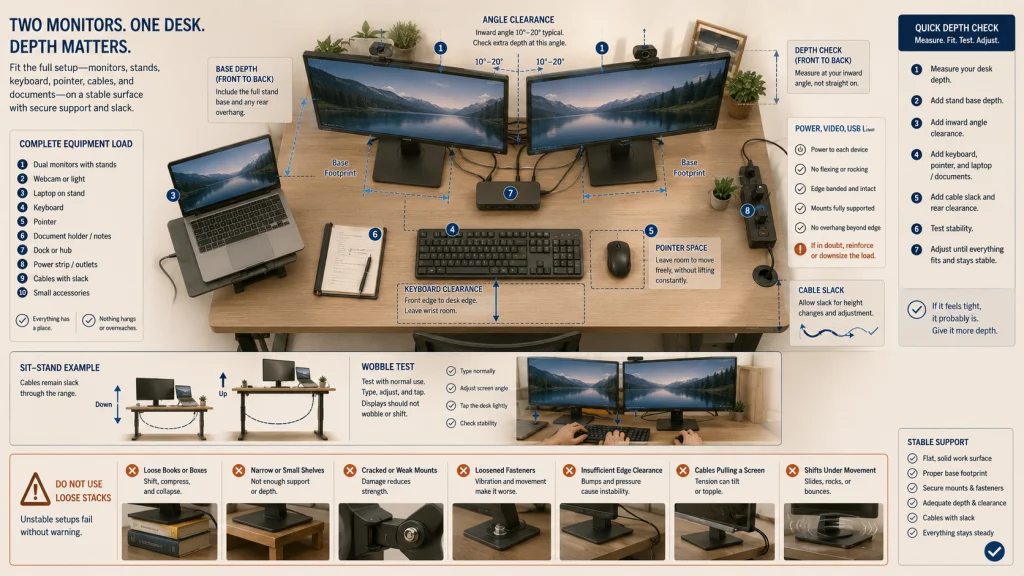
Check Desk Depth, Bases, Cables, Stability, and Mounting Limits
Two monitors need more than horizontal width. Their bases consume depth, angled screens extend toward the user, and cables gather behind them. A pair can fit neatly across the desk in a photograph yet leave the keyboard hanging near the front edge, the mouse squeezed beside a stand, or the screens much closer than expected once real work begins.
Record:
- The depth of each stand base and where its feet contact the desk.
- The space required when the displays angle inward.
- The position of video, power, USB, and charging ports.
- Whether cables pull when a display moves or the desk changes height.
- Whether the desk surface, shelf, or mount supports the complete load.
- Whether the displays wobble during typing, adjustment, or ordinary desk movement.
- Whether a laptop, document holder, speakers, or webcam still fits without blocking ventilation.
Desk-depth and stability warning: Do not balance monitors or laptops on loose stacks, narrow shelves, or unstable furniture to create height. Verify the support surface, stand, mount, fasteners, load limits, edge clearance, and installation instructions for the exact equipment. Stop using hardware that shifts, cracks, loosens, or cannot hold the display securely.
When the desk cannot provide enough depth or stable support, repeated angle changes will not solve the underlying problem. Naming the limit clearly can be more useful than spending another evening nudging the same screens a few inches back and forth.
Reduce Glare Across Both Displays, Not Just the Primary Screen
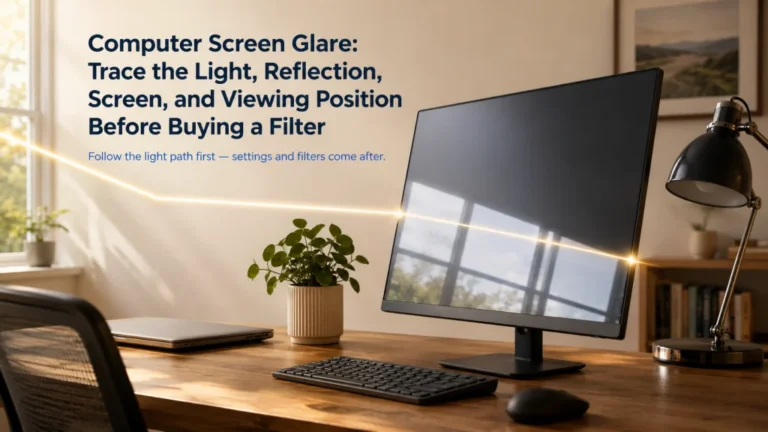
Two screens can catch light differently even when they sit side by side. One may hold a pale window reflection all afternoon while the other remains clear. A glossy laptop display may mirror a lamp that barely touches the larger monitor. The mismatch is easy to tolerate for a few minutes and increasingly distracting when every glance crosses from one lighting condition to another.
Check each display with the applications and backgrounds used during the day. Dark interfaces may reveal reflections that are less obvious on a white page. Video calls can add a light source that improves the camera image while creating glare on the secondary screen.
Change the room light, blind position, screen angle, and local task lighting before increasing brightness simply to overpower reflections. Keep the screens readable without making one display noticeably harsher than the other.
For window position, reflections, contrast, and lighting choices, use the guide to reducing computer screen glare.
Route Mounts, Arms, and Specialized Workflows to the Correct Decision
If the use pattern is clear but the original stands cannot provide the needed height, distance, angle, or desk clearance, the next question concerns support hardware. Review ergonomic equipment choices for monitor stands, mounts, arms, docks, and related categories without treating a product as the first step.
Some work involves specialized multi-screen patterns that go beyond an ordinary two-display home office. Continuous monitoring, occupation-specific dashboards, detailed media timelines, trading layouts, control rooms, and three-or-more-screen systems may require a task-specific arrangement. Use the everyday ergonomics guide to route scenario-based constraints rather than copying a general two-monitor layout.
For the full adjustment order across the chair, desk, inputs, and screens, return to the ergonomic desk setup and the broader posture and ergonomics guide.
Stop Setup Experiments for Persistent Symptoms or Vision Changes
This article can help identify screen roles, repeated turning, readability differences, glare, desk limitations, and hardware mismatch. It cannot diagnose a neck condition, nerve problem, vision disorder, headache disorder, repetitive strain injury, or another medical condition from symptoms or a workstation photograph.
Stop condition: New, severe, persistent, worsening, or unexplained pain; numbness; weakness; tingling; loss of hand function; significant vision change; severe headache; balance change; or symptoms after an injury require appropriate professional evaluation. Chest pain, severe shortness of breath, fainting, or other emergency signs require immediate appropriate help.
Do not keep changing screen angles or buying support hardware in an attempt to determine the cause. Record when the symptoms occur, which screen tasks are involved, and what ordinary setup changes have already been tried, then seek qualified guidance.
Choose the Use Pattern, Center, Screen Match, and Remaining Constraint
Begin with a normal work session and notice where attention actually spends the day. If one screen dominates, center that display and the keyboard. If work moves frequently between both, center the shared visual field. The arrangement should follow the task that keeps happening, not the tidy setup imagined before the applications are open.
Then compare height, distance, scaling, brightness, text readability, documents, webcam position, desk depth, cables, and stability. A laptop used as the second display needs a clear role so its attached keyboard does not pull the input zone out of place.
The final arrangement does not need to look perfectly symmetrical. It should make the main task feel easy to return to, keep supporting information close enough to consult, and remain workable after documents, calls, cables, and ordinary desk clutter arrive. A useful two-screen setup feels less like a display to maintain and more like a desk that understands where the work belongs.
FAQs
🖥️ Should the seam between two monitors be centered?
Center the seam when both screens share the task often enough to form one visual field. When one screen carries most of the work, center the primary display instead and place the secondary screen beside it.
🎯 Which monitor should be directly in front of me?
The screen that receives most typing, reading, and pointer work should usually occupy the main center position. Confirm the choice by observing a normal session rather than deciding from display size alone.
📐 Do both monitors need the same height and distance?
Match the active content height, viewing distance, and readability where practical, especially when use is equal. Different screen sizes or stands may prevent an exact match, so prioritize the areas used most often.
💻 Can a laptop work as the second monitor?
Yes. Give it a defined secondary role such as calls, messages, or reference, and use external inputs for sustained work so the built-in keyboard does not disrupt the main input position.
↕️ Is a stacked dual-monitor layout better for a narrow desk?
It can save horizontal space, but the upper display adds vertical viewing. Use it when the upper screen holds occasional or monitoring content, and test whether the stand or mount can position both screens securely.
📄 Where should paper documents go with two monitors?
Place documents close to the screen they support without pushing the primary task off-center or moving the keyboard too far forward. A holder beside or below the relevant display may work better than laying paper flat in the input zone.
📹 Which screen should hold the webcam?
Place the camera near the screen where faces and call controls appear most often. Avoid putting the call on a far secondary screen when that causes repeated turning away from the primary task.
⚠️ When should I stop adjusting the monitors?
Stop treating the layout as the only explanation when pain is persistent or worsening, or when numbness, weakness, tingling, significant vision change, severe headache, balance change, loss of function, or symptoms after injury are present. Seek appropriate professional evaluation.