An ergonomic desk setup is easier to keep when the adjustments happen in a dependable order. Start with the work that must happen, clear enough space to sit close, and establish stable chair and foot support before placing the keyboard, mouse, and screen. Then add documents, calls, and secondary devices according to how often they are used, and test each real task instead of judging the desk while sitting still. Consider equipment only after the remaining limitation can be described clearly.
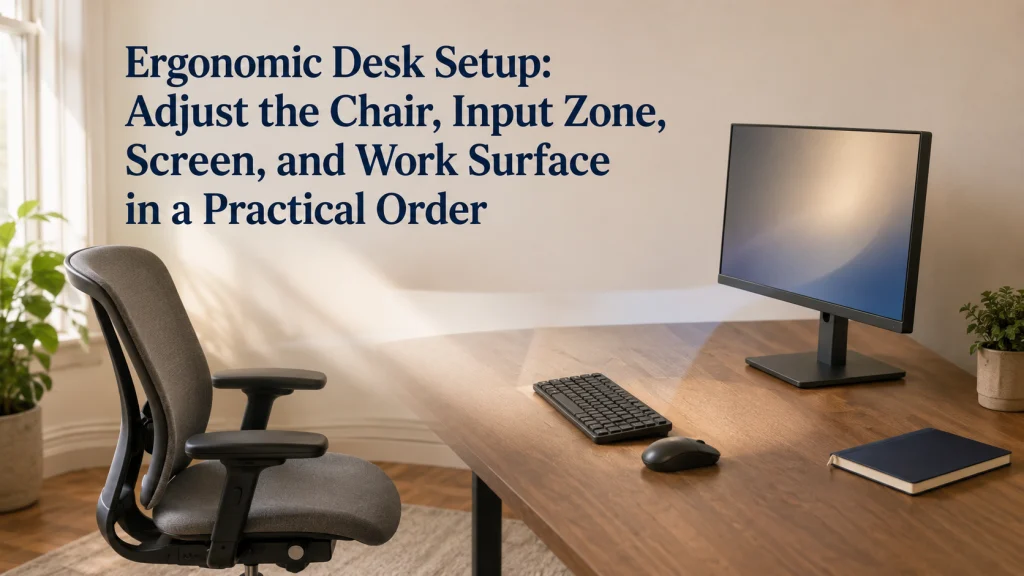
Set the Workstation in an Order That Holds
The same desk can feel settled in the morning and frustrating by the first long task if its parts were adjusted in the wrong order. In a monitor-first setup, the screen is raised and centered before the chair and input area are settled. When the chair later moves closer or higher, the keyboard may feel awkward, the shoulders may lift, and the screen position has to be reconsidered.
Adjustment order matters because every early decision narrows or expands what can work later. The sequence below keeps those dependencies visible without pretending that one measurement suits every body, desk, or task.
Adjustment-order diagram:
Work to support → Clear space → Chair and feet → Keyboard and mouse → Desk mismatch → Primary screen → Secondary items and light → Real-task test
When a later step fails, return to the earliest dependency that controls it instead of moving everything at once.
This is not a race to make the desk look finished. It is a way to keep one adjustment from quietly undoing another during an ordinary workday.
Start With the Work the Desk Must Support
Before moving the chair or screen, write down what actually happens at the desk. A workstation used mainly for long typing sessions has different priorities from one used for video calls, large paper documents, sketching, frequent phone use, or constant movement between two displays.
The desk has to work during the untidy middle of the day, not only in the few minutes after it has been arranged. Someone who writes reports in the morning and joins calls in the afternoon may need a stable keyboard and primary screen all day, with a notebook, headset, and camera moving closer only for calls.
- Primary tasks: The work that occupies most of the session and deserves the most stable position.
- Secondary tasks: Work that happens often but can use a nearby zone rather than the center of the desk.
- Occasional tasks: Items or devices that can move closer only when their task begins.
Include the primary device, paper documents, notebooks, a headset, a phone, chargers, reference material, and anything that must remain connected. The goal is not to make every object equally convenient. It is to protect the most frequent work while leaving a workable place for everything else.
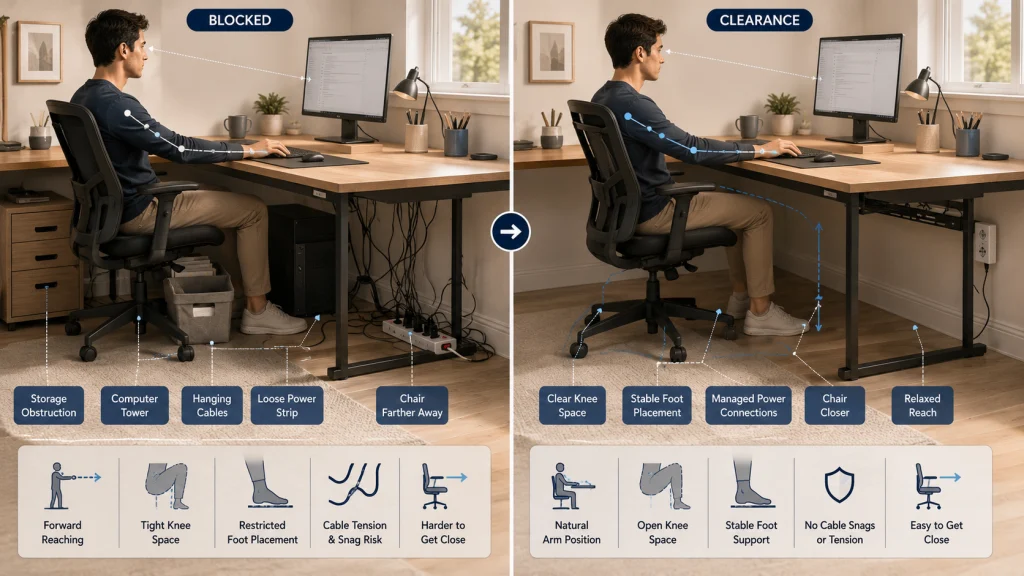
Clear Leg, Knee, Foot, and Cable Space First
Under-desk space is part of the workstation, even when it disappears from view. Drawers, storage bins, computer towers, power strips, and hanging cables can keep the chair several inches farther away than expected. The hands then reach forward to compensate, even though the keyboard appears close on the surface.
Remove objects that do not need to live below the desk. Check that the knees can move without meeting a drawer, the feet have a dependable place to rest, and cables do not pull tight when the chair reaches the intended position. Keep power connections away from repeated chair contact and avoid routes that place cables under normal foot movement.
Practical tip: Sit at the cleared desk before replacing accessories. If a drawer or cable bundle prevents the chair from moving close enough, changing the monitor will not solve the reach created below the surface.
Establish a Stable Chair Position and Foot Support
Use the chair already available and aim for a position that feels stable rather than perched or stretched. The feet should have dependable support from the floor or an existing stable surface, and the seat should allow the user to approach the desk without pressing into the back of the knees or leaning forward to reach the work.
Use the chair’s existing adjustments only as far as they remain secure and understandable. Set the back support so the torso can rest against it during ordinary work, then confirm that the chair does not need to be pulled away to make room for drawers or a thick desk edge.
This article does not compare chair models or decide whether a separate foot support is worth buying. At this stage, the job is to determine whether stable support is possible with the equipment already present. If it is not, record the exact reason instead of compensating by changing several unrelated parts of the desk.
Build the Keyboard and Mouse Zone Around Relaxed Reach
With the chair stable, bring the keyboard and mouse into the area the hands can use without the torso drifting forward or one shoulder reaching farther than the other. The controls should fit the working position rather than pull the working position toward them.
Keep the mouse beside the keyboard instead of beyond papers, a notebook, or a wide accessory. Center the keyboard according to the keys used most. For text-heavy work, a wide keyboard with a number pad can push the mouse outward when the entire case is centered, even though the letter keys are the part used all day.
Try a normal sentence, edit a paragraph, select text, drag a file, and move between the keyboard and mouse. Those small actions reveal more than a still photograph. A position that looks balanced may become tiring once the same reach is repeated dozens of times.
Make small changes in distance or angle while the chair stays still. If the input area cannot become usable without losing stable foot support, the problem may belong to the fixed work surface rather than the keyboard or mouse.
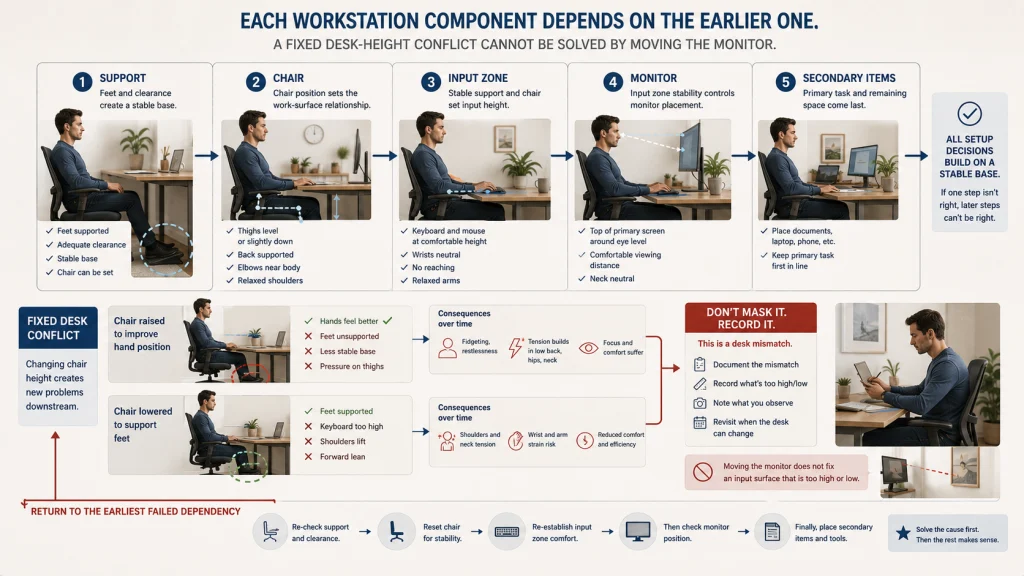
Identify a Fixed Desk-Height Mismatch Without Hiding It
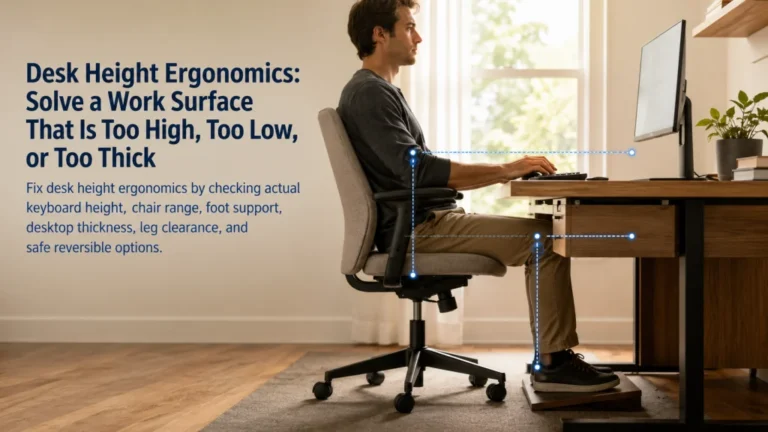
A fixed desk can create a genuine conflict between stable foot support and usable input height. Raising the chair may bring the hands closer to the work surface but leave the feet unsupported. Lowering the chair may restore foot support while making the keyboard area feel too high. Moving the monitor cannot resolve that conflict.
| Decision that becomes stable | Earlier dependency | Signal that the sequence can continue |
|---|---|---|
| Chair position | Foot support and under-desk clearance | The chair can approach the desk without instability or obstruction |
| Keyboard and mouse zone | Chair position and work-surface height | The controls can be used without lifted shoulders or forward leaning |
| Primary monitor | Stable support and input zone | Ordinary text is readable without changing the established position |
| Secondary items | Primary tasks and remaining surface area | Frequent items stay nearby without taking over the input zone |
This table is not another copy of the setup sequence. It shows which earlier decision must remain stable before the next component can be judged. When the input zone still fails after the chair and feet are settled, record a work-surface mismatch and handle that question separately.
Place the Primary Monitor for Readable Work Without Leaning
Set the primary screen only after the chair and input zone are stable. Begin with the screen centered on the task that receives the most attention. Adjust its distance and height until ordinary text can be read without the head moving forward, the body leaning toward the desk, or the eyes repeatedly searching above and below the useful area.
Readable text matters as much as physical placement. Increase text size or interface scaling when available before moving the screen closer simply because the content is difficult to see. A screen that appears neatly aligned with the desk may still be poorly placed for the actual software, document size, or visual demands of the work.
Do not treat one line on the monitor as a universal target. Screen size, display layout, eyewear, task type, and individual preference all change what feels usable. Refine screen height and viewing distance only after the full setup is stable.
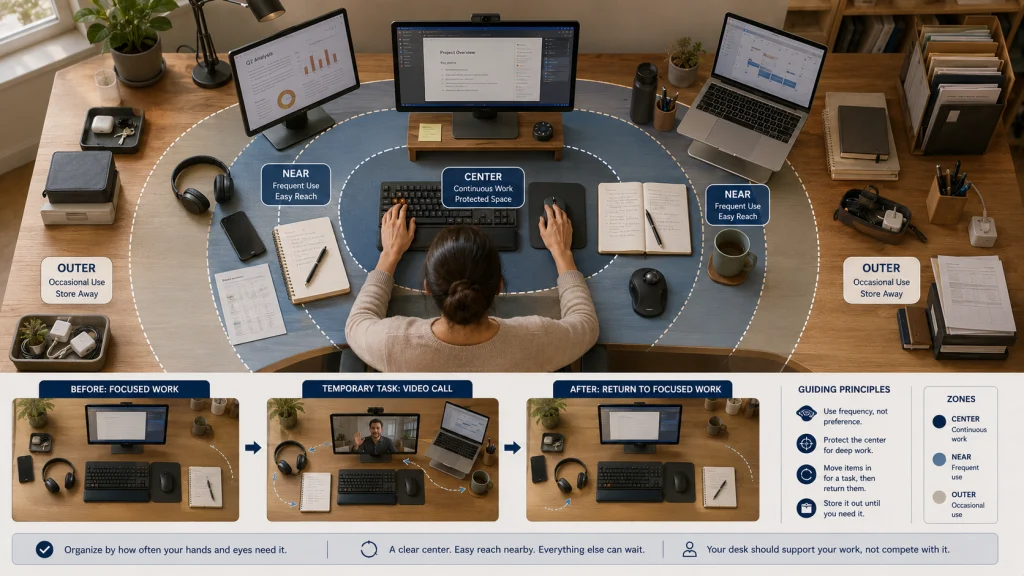
Add Secondary Screens, Documents, Calls, and Devices by Frequency
Once the primary task area works, place the remaining equipment by how often the hands or eyes need it. The center of the desk should not be shared equally by every object. A phone used twice a day does not need the same access as the mouse, and a document needed for one afternoon task can move closer only for that task.
Primary-secondary work-zone map: Read the desk from the body outward.
Center zone: Keep the keyboard, mouse, active document, and essential controls used continuously within the easiest reach.
Near zone: Place a phone, notebook, headset, reference pages, or a second input device close enough for frequent use without crowding the center.
Outer zone: Store chargers, archived papers, supplies, and task-specific devices farther away until their task begins.
A laptop used as the main computer creates a different arrangement from one used only as a second screen. When its built-in screen and keyboard cannot both remain useful, identify that conflict instead of forcing both into the center zone. Two active monitors also need a clear primary screen rather than equal placement by default.
During a video call, a notebook and headset may move into the near zone while the camera becomes temporarily important. When the call ends, returning those items prevents the rest of the day from being organized around a task that has already finished.
Reduce Glare Before Building the Setup Around Reflections
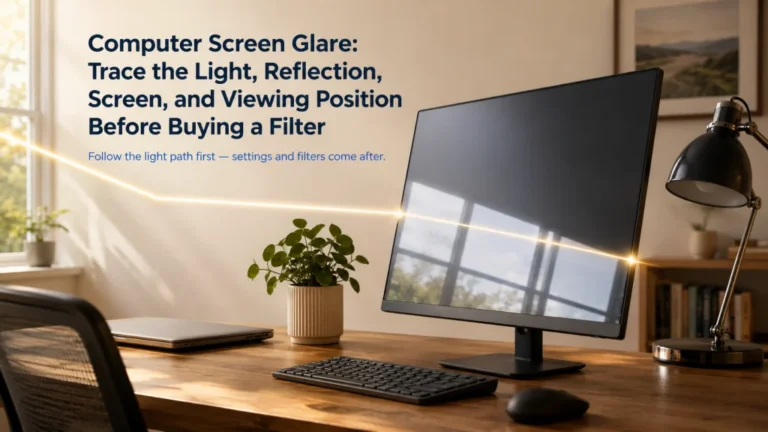
Check the screen at the times of day when the desk is normally used. A window, overhead light, or bright wall may create a reflection that is absent during setup but returns later. Turning the monitor to escape one reflection can make the keyboard, camera, or second screen harder to use, so address the light source before rebuilding the whole workstation.
Try practical changes with existing equipment first. Adjust blinds or curtains, move a lamp, change the screen angle slightly, or reduce a bright source behind the user. Preserve enough room for the chair, input zone, and primary viewing position.
Treat any remaining reflection or lighting problem as a separate glare question without changing the setup sequence described here.
Send Each Remaining Question to the Right Component
This setup process owns the order of decisions, not every detailed adjustment. Use the home office ergonomics guide to identify the broader workstation problem, and use the posture and ergonomics overview when the question extends beyond the desk itself.
- Refine screen placement with the monitor placement guide.
- Refine hand-control placement with the keyboard and mouse setup guide.
- Resolve built-in screen and keyboard conflicts with the laptop workstation guide.
- Arrange two active screens with the dual-monitor setup guide.
- Investigate a fixed work-surface conflict with the desk-height guide.
- Address reflections with the screen-glare guide.
- Consider equipment categories only after reviewing the ergonomic equipment guide.
Keeping these questions separate prevents one adjustment from becoming a reason to replace the entire workstation.
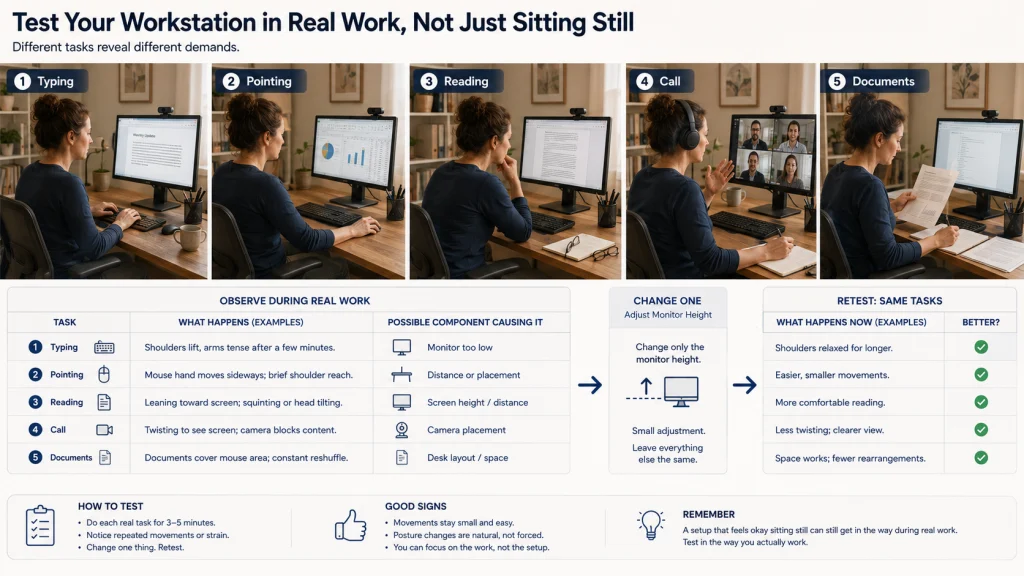
Test Typing, Pointing, Reading, Calls, and Documents Separately
A workstation can feel acceptable while the user sits still and fail as soon as real work begins. A few minutes of typing may expose a reach that was invisible during setup. A video call may reveal that the camera blocks the main screen, while a paper document may cover the mouse area every time it is opened.
| Real task | What to notice | Possible setup issue |
|---|---|---|
| Typing | Shoulder position, reaching, chair movement, and wrist comfort | The input zone may be too high, low, far away, or crowded |
| Pointing and dragging | Repeated side reach or loss of usable mouse space | The mouse may be too far from the keyboard or blocked by papers |
| Reading on screen | Forward leaning, squinting, or repeated head movement | Text size, screen distance, height, or glare may need attention |
| Video calls | Camera position, note space, and repeated twisting | Call equipment may be displacing the primary work zone |
| Paper documents | Repeated looking down, reaching, or covering controls | Documents may need a deliberate temporary position |
Change one variable at a time and repeat the same task. That slower approach makes the result easier to understand than moving the chair, keyboard, and screen together and hoping the desk feels different afterward.
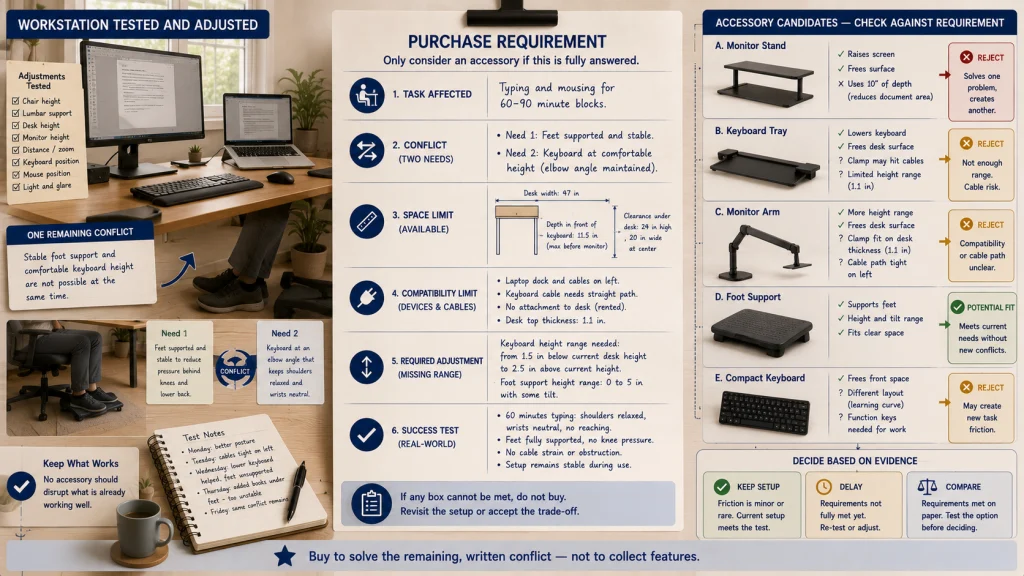
Record the Unresolved Constraint Before Buying Equipment
After the real-task test, write down the limitation that remains. A useful note describes the conflict, the task it affects, the space available, and the adjustment range that is missing. This turns a vague desire for a more ergonomic desk into a specific requirement.
- Task affected: What work becomes difficult?
- Current conflict: Which two needs cannot be met at the same time?
- Space limit: What clearance, surface area, or footprint is available?
- Compatibility limit: What thickness, cable length, device connection, or mounting condition matters?
- Required adjustment: What movement or range is actually missing?
- Test for success: What should become easier during the real task?
Editorial observation: Products described as adjustable do not automatically overlap in the range needed by the same person and desk. A chair may rise while the work surface remains too high, or a monitor stand may lift the screen but occupy the space needed for the keyboard, documents, or laptop.
Compare dimensions, adjustment limits, work-surface thickness, under-desk obstacles, accessory footprint, cable reach, and compatibility against the written constraint. Do not buy an accessory simply because it is commonly included in desk-setup examples.
Stop Self-Adjustment When Symptoms Need Professional Evaluation
This guidance is for arranging an existing home computer workstation. It cannot diagnose the cause of symptoms or determine whether a desk setup is responsible.
Safety warning: Seek appropriate professional evaluation for new, severe, persistent, worsening, or unexplained pain, numbness, weakness, tingling, loss of hand function, significant vision change, severe headache, balance change, or symptoms after an injury. Chest pain, severe shortness of breath, or fainting require immediate appropriate help.
Do not keep changing equipment to test a medical explanation. Employer accommodations, disability questions, workers’ compensation, and legal requirements also need the appropriate workplace or professional process rather than a general lifestyle article.
Preserve the Order and Solve One Defined Limitation
A workable desk grows from the inside out. Begin with the tasks, make room for the body and cables, stabilize the chair and feet, and settle the keyboard and mouse before the screen becomes final. Secondary equipment and lighting come later because they should support the main work rather than rearrange it.
Test the desk during the moments that usually make it difficult: a long paragraph, careful mouse work, a call with notes, or a document spread across the surface. When one limitation remains, name it precisely. That written constraint is a better starting point for any later purchase than a desk accessory that simply looks adjustable.
FAQs
🪑 Should I adjust the chair or monitor first?
Set the chair and reliable foot support before finalizing the monitor. The monitor should be placed around a stable working position, not used to decide where the body must sit.
⌨️ What if my desk feels too high for typing?
First confirm that the chair, feet, and under-desk clearance are stable. If comfortable input height and stable foot support cannot exist together, record that conflict and review the desk-height question separately.
🖥️ Can I set the monitor before adding the keyboard?
You can place it temporarily, but avoid treating that position as final. Keyboard and mouse placement may change the chair position, reach, and usable depth of the work surface.
💻 How should I include a laptop in the setup?
Decide whether it is the primary computer, a secondary screen, or an occasional device. Its role determines whether the built-in keyboard, screen, or both need to remain in the primary work zone.
📄 Where should paper documents go?
Place frequently referenced documents in the secondary zone without covering the keyboard, mouse, or active screen. Documents used only occasionally can move closer for that task and return afterward.
🛒 When does an accessory become worth considering?
Consider equipment after the existing setup has been adjusted in sequence and tested during real work. Write down the unresolved conflict, available space, compatibility needs, and the adjustment range that is missing before comparing options.