Set monitor height and distance by watching what happens during real work, not by forcing the screen to match one eye-level or arm-length rule. Make text readable first, settle into a supported position, and then adjust distance, height, centering, and tilt one step at a time. A document, a lower-screen timeline, and a video call can each pull the eyes toward a different part of the same display, so the task must guide the final position. When ordinary changes do not resolve significant vision changes, severe headaches, or other concerning symptoms, stop adjusting the desk and seek appropriate professional evaluation.
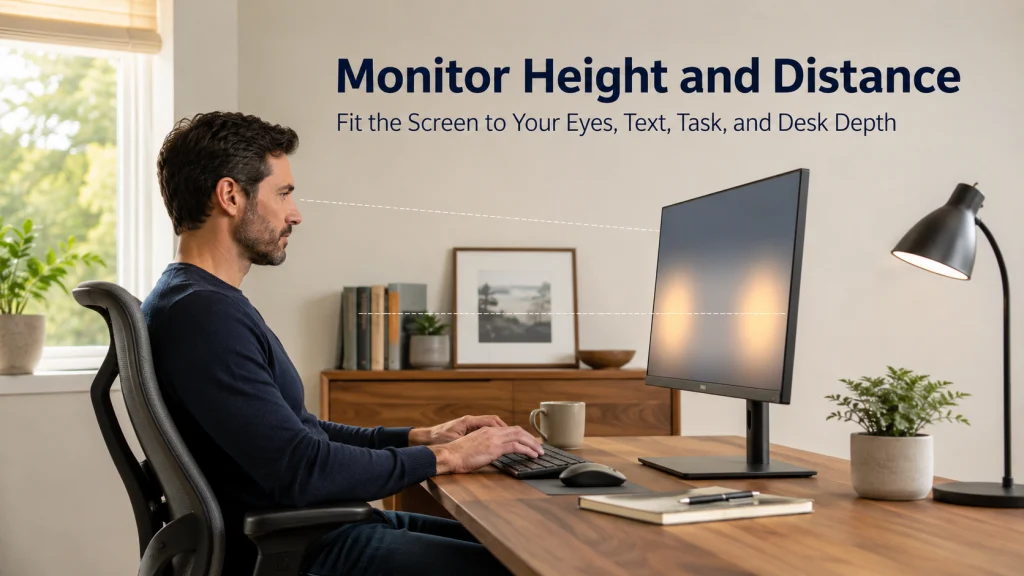
The Same Screen Can Feel Right at 9 a.m. and Wrong by the Next Task
A monitor may feel comfortable while you read a report near the upper half of the screen. Ten minutes later, a spreadsheet or editing timeline places the important detail near the bottom, and your chin begins to drop. Then a video call opens near the top webcam, and you lift your head again without moving the monitor at all.
That ordinary sequence explains why a fixed frame height cannot answer every viewing question. The screen stayed still, but the work moved inside it.
| Task on one monitor | Main viewing area | What may change in the body |
|---|---|---|
| Read a document | Upper and middle area | The torso may drift forward when text is too small. |
| Edit a timeline or large sheet | Middle and lower area | The chin may drop or the person may slide lower in the chair. |
| Join a video call | Faces on screen and camera near the top edge | The chin may lift as attention moves toward the camera. |
The practical goal is a screen position that works across the tasks that matter most, without asking the neck, eyes, or torso to compensate every time the window changes.
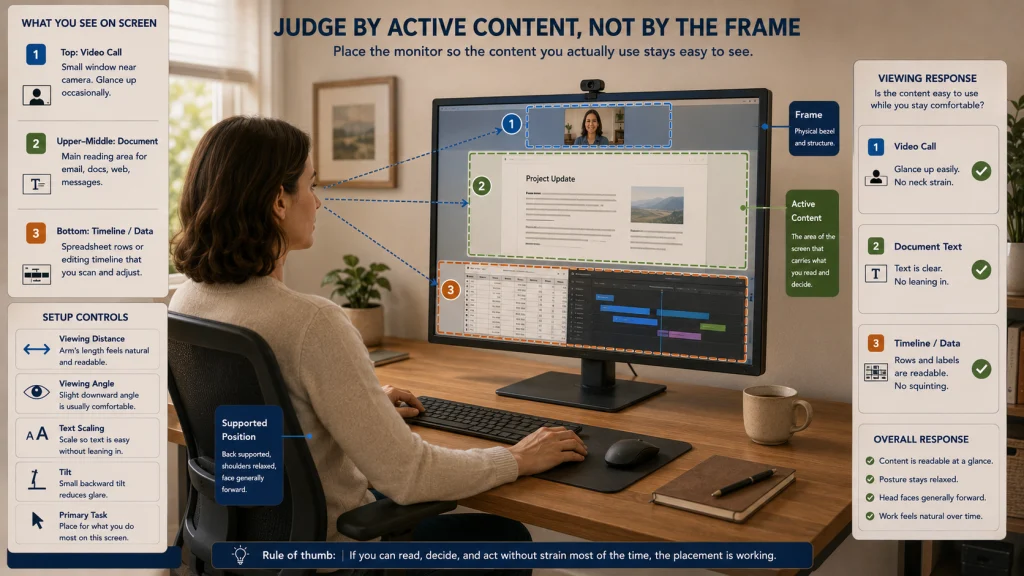
Know Which Part of the Setup You Are Actually Adjusting
The screen frame is the physical panel and bezel. The active content area is the text, image, timeline, cells, controls, or faces you repeatedly view. Viewing distance is the space between the eyes and that content. Viewing angle describes where it sits relative to a comfortable forward gaze.
Text scaling changes the size of text and interface elements without moving the monitor. Tilt changes the angle of the display surface. The primary task is the work that deserves priority because it takes the most time or requires the closest attention.
Content-area versus frame diagram:
Physical frame: top bezel, bottom bezel, base, and stand
↓
Active content: the region used for the current task
↓
Viewing response: whether that region is readable while the back remains supported and the head stays generally forward
This distinction keeps the setup focused on what the person sees and does, rather than on matching the eyes to one hardware edge.
Settle the Chair and Input Zone Before Moving the Display
A screen placed for a temporary lean will need to be moved again as soon as the chair or keyboard changes. Begin by sitting back with the torso supported, the feet on a stable surface, and the keyboard and mouse close enough that the shoulders do not have to reach forward.
Then face the primary work area and let the eyes look ahead naturally. This creates a dependable starting position. Without it, every monitor change is being measured against a posture that may disappear five minutes later.
Use the complete ergonomic desk setup sequence when chair height, desk clearance, or input position is still unsettled. The broader home office ergonomics guide can help identify whether the monitor is the main problem or only the most visible one.
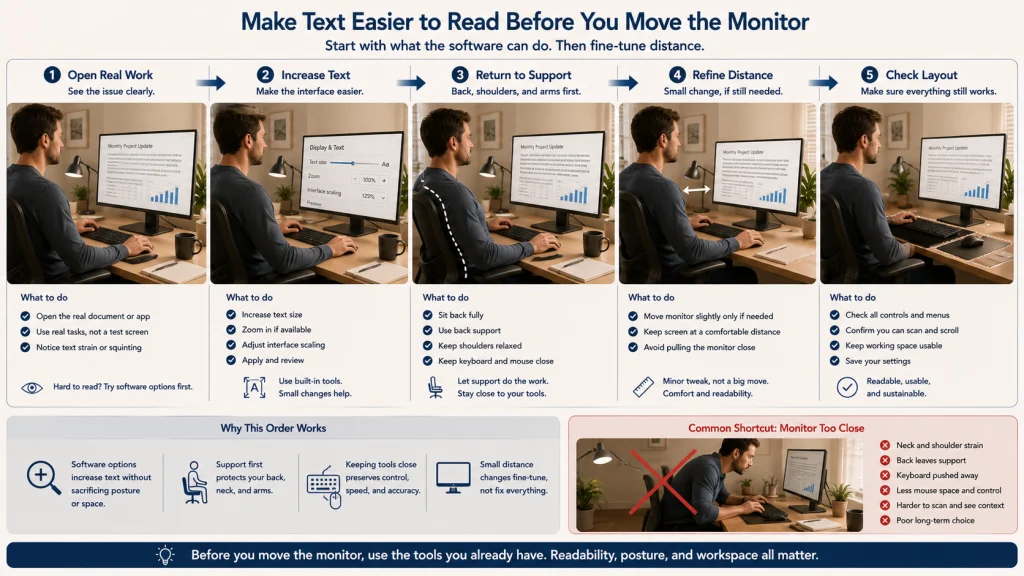
Fix Readability Before Sacrificing Desk Depth
When text looks small, the quickest reaction is often to pull the monitor forward. That can make the words clearer while quietly crowding the keyboard, shortening mouse space, and drawing the torso away from the chair.
Text-size-before-distance ladder:
Open the real document, program, or webpage
↓
Increase text size, zoom, or interface scaling in small steps
↓
Return the back to the chair
↓
Move the monitor only enough to refine clarity
↓
Confirm that important controls and layout still remain usable
Scaling can also go too far. Oversized controls may hide useful information or create constant scrolling. The right setting is the one that makes ordinary work readable without turning the interface into a new obstacle.
Editorial observation: A larger or higher-resolution display may still lead to leaning when text scaling and desk depth are ignored. More screen detail does not automatically create a comfortable viewing arrangement.
Choose a Distance That Keeps Both the Screen and Chair Usable
Arm’s length can be a convenient first check, but it cannot account for every screen size, application, visual detail, lens, or desk. Treat it as a place to begin, then test whether the whole working area can be seen without repeated head movement.
Next, inspect the smallest detail that matters. Move the display slightly closer only when scaling cannot solve the problem without harming the layout. If the back repeatedly leaves the chair to read, the current combination of text size and distance is not doing its job.
Afterward, type and use the mouse for several minutes. A monitor distance is not workable when it solves reading by damaging the input zone.
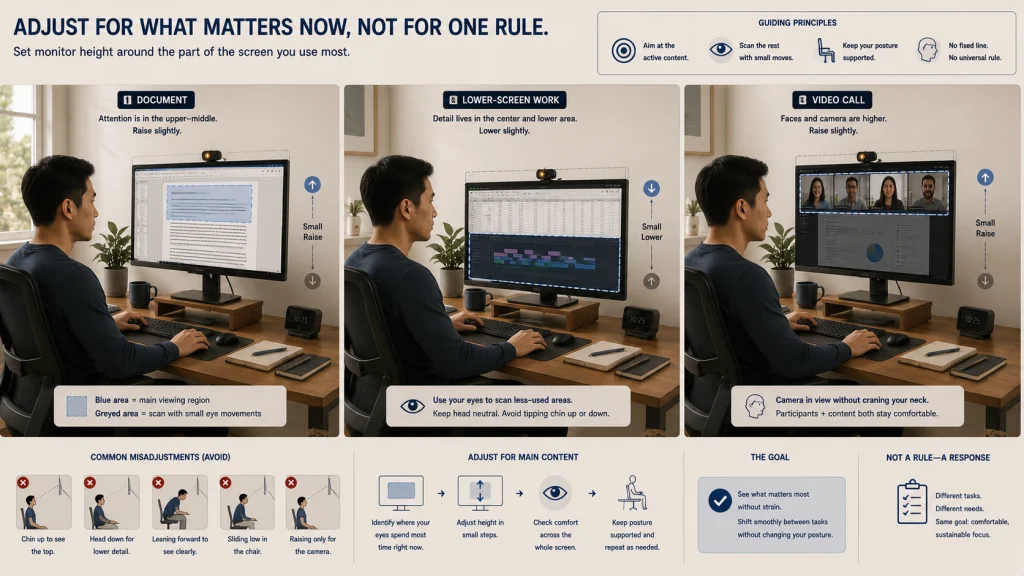
Set Height Around the Work That Holds Your Attention
Once distance is close, open the task you perform most often. Notice whether your eyes spend time near the upper middle, the center, or the lower portion of the display. That observation is more useful than judging the monitor while the desktop is empty.
A common starting reference places the upper screen area around or below eye level, but it should not become a rigid target. A tall screen with toolbars at the top and detailed work below may need a different position from a display used mostly for reading text near the upper middle.
Raise or lower the display in small steps. Stop when the important area can be viewed without repeatedly lifting the chin, dropping the head, or sliding down in the chair. Then scan the less-used upper and lower areas to make sure they remain accessible without large, repeated head movements.
Align the Primary Screen With the Work That Anchors the Body
A person can spend an entire morning facing slightly left because the monitor was placed beside a notebook, lamp, or decorative object. The turn may feel too small to notice at first, yet the body repeats it through every paragraph, cell, and click.
For typing-heavy work, the primary display, keyboard, and torso should generally share one forward direction. Other objects do not need perfect symmetry. They simply should not displace the screen that receives most of the attention.
When desk shape or a fixed surface prevents alignment, name that constraint instead of twisting the screen and chair in opposite directions. A clear limitation is easier to solve later than a collection of compensations that keep moving.
Use Tilt as a Fine Adjustment, Not a Rescue Move
Tilt changes how directly the display surface faces the viewer. It can be useful after text size, distance, height, and centering are already close, especially when the screen sits somewhat below the eyes.
A steep angle often signals that another variable is carrying the wrong load. If the chin rises to follow the image, revisit height. If the head drops toward the chest, check whether the display or its main content sits too low. If reflections move but do not disappear, the real problem may be light rather than tilt.
Practical tip: Make one small tilt change, put both hands back on the keyboard, and complete a normal reading or typing task. Holding the monitor while judging it can hide the position used during real work.
Handle Large Screens, Multifocal Lenses, Webcams, and Shallow Desks Separately
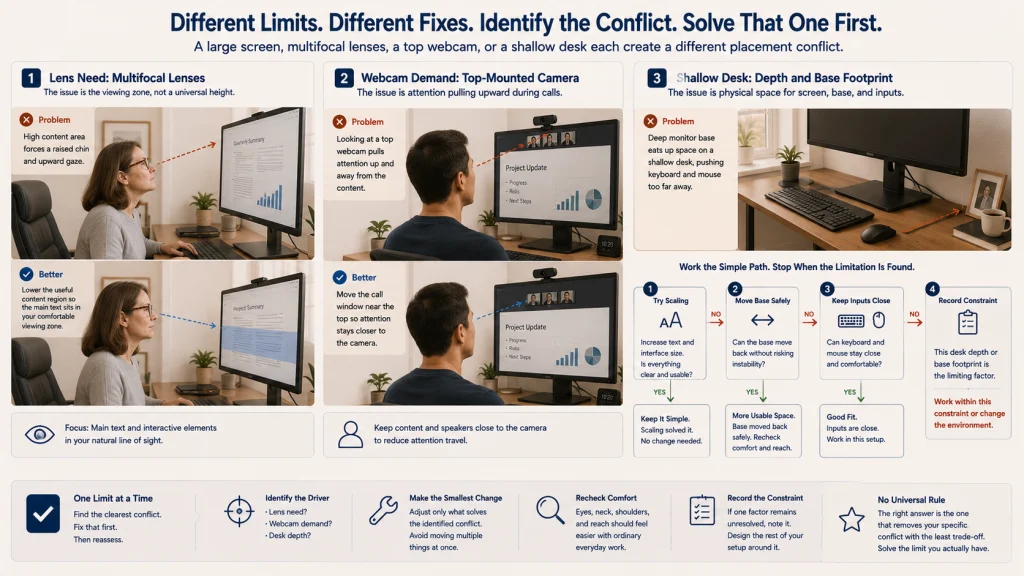
Some workstations remain awkward because one practical constraint keeps overriding every general rule. A large display may spread important information across a wide area. Multifocal lenses may make one part of the screen clearer than another. A top webcam can pull attention upward. A shallow desk may leave no room for both a deep monitor base and a close keyboard.
Bifocal and webcam caveat: With bifocals or other multifocal lenses, a high screen may encourage the chin to lift so the eyes can look through a particular part of the lens. Lowering the useful content may be more comfortable, but lens needs are individual and should not be turned into one desk measurement.
A top-mounted webcam creates a separate demand. Keep the display comfortable for ordinary work, then move the call window nearer the camera when eye contact matters. Do not raise the whole monitor solely to improve camera position.
Shallow-desk decision tree:
Can text scaling reduce the urge to lean?
→ Yes: keep more distance and retest.
→ No: continue.
Can the base move back without becoming unstable or blocking another required item?
→ Yes: move it slightly and retest.
→ No: continue.
Can the keyboard remain close while the screen gains distance?
→ Yes: preserve the input zone and retest.
→ No: record desk depth or base footprint as the unresolved limitation.
Stand range, tilt, swivel, base depth, bezel size, webcam position, desk footprint, and mounting compatibility matter only after the limitation is defined. The guide to ergonomic equipment and supports covers later product decisions without turning this process into a shopping list.
Do Not Chase Reflections by Rebuilding the Screen Position
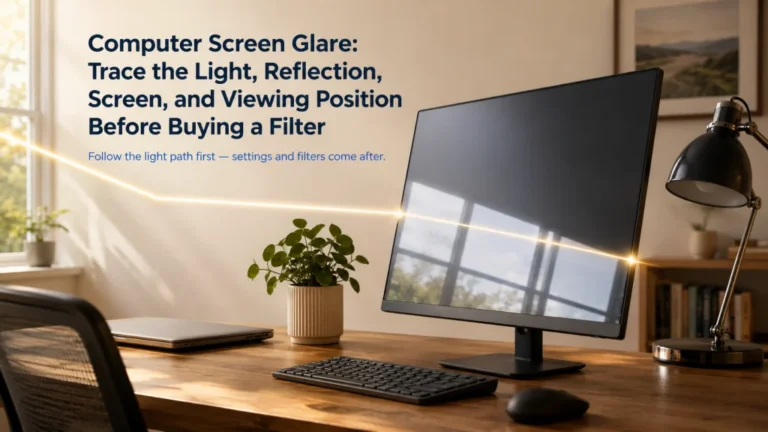
A bright window can make a well-placed display feel unreadable by late afternoon. Moving the monitor up or down may shift the reflection, but it can also leave the screen at a poor viewing angle while the light source remains unchanged.
Identify the source first. Check windows, overhead fixtures, task lamps, bright walls, and reflective surfaces behind the viewer. Change the light, shade, screen direction, or desk orientation before asking height and tilt to solve the entire problem.
Use the guide to reducing computer screen glare when reflections or brightness contrast remain the main obstacle. Glare and monitor geometry interact, but they are not the same decision.
Use a Different Layout Method When Two Screens Compete for Attention
This process assumes one clear primary monitor. A small secondary display used briefly can remain to the side, but two equal screens create a new question: should the body face one display, the seam, or a changing center based on the task?
Do not center the torso on an empty gap only because the displays are the same size. Use the guide to dual monitor ergonomics when both screens matter. A laptop that remains attached to its keyboard also needs the separate decisions in laptop ergonomics.
Know When the Problem Has Moved Beyond Desk Adjustment
Small changes can improve readability or remove an obvious lean, but a monitor setup cannot diagnose or treat a vision disorder, headache disorder, nerve problem, spinal condition, or work-related injury.
Safety warning: Seek appropriate professional evaluation for significant vision change, severe headache, new, severe, persistent, worsening, or unexplained pain, numbness, weakness, tingling, loss of hand function, balance change, symptoms after an injury, chest pain, severe shortness of breath, or fainting. Do not keep moving the monitor as a substitute for evaluation.
Symptoms that remain after ordinary adjustments may involve vision needs, lighting, workload, sleep, health, or another factor outside screen geometry. Employer accommodation, disability, workers’ compensation, and legal questions require the appropriate workplace or professional process.
Finish With a Real-Task Test
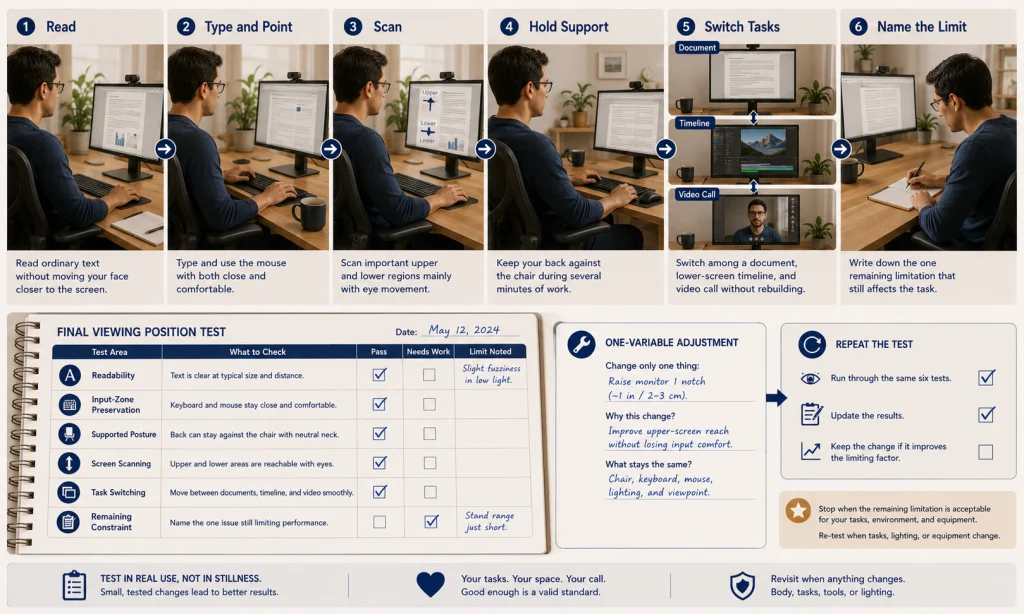
Do not judge the setup from a blank desktop or a few seconds of sitting still. Open the work that usually draws you forward, downward, or to one side, and see whether the arrangement holds while you actually use it.
| Final viewing test | What to notice |
|---|---|
| Read ordinary text | Can you read without moving the face toward the screen or shrinking away from it? |
| Type and point | Do the keyboard and mouse remain close while the screen stays clear? |
| Scan the working area | Can you reach the important upper and lower regions with mostly eye movement? |
| Hold support | Does the back remain against the chair during several minutes of normal work? |
| Switch tasks | Can documents, detailed lower-screen work, and video calls remain usable without rebuilding the workstation? |
| Name the unresolved limit | Is the remaining problem text clarity, desk depth, stand range, glare, lens needs, or another specific constraint? |
Keep the sequence simple: readable text, supported posture, usable distance, task-based height, centering, tilt, and a real-task check. Use the posture and ergonomics guide when the next decision extends beyond the screen to furniture, movement, and daily work habits.
FAQs
👀 Should the top of my monitor be exactly at eye level?
No single frame position fits every task. Eye level is a starting reference, but screen size, useful content, lenses, and supported posture should determine the final height.
📏 Is arm’s length the correct monitor distance?
It is a practical starting check, not a universal prescription. Adjust text size first, then choose a distance that keeps the screen readable without losing back support or pushing the input devices away.
🔍 Should I move the monitor closer when text looks small?
Try text size, zoom, or interface scaling first. Pulling the monitor closer may reduce desk depth and encourage leaning while leaving the original readability issue unresolved.
🖥️ Does a larger monitor need to sit farther away?
It often needs enough distance to view the main work area without excessive head movement, but size alone does not decide placement. Resolution, scaling, desk depth, layout, and task detail also matter.
👓 Should bifocal users lower the monitor?
Some people find a lower viewing area easier because it reduces the need to lift the chin, but lens needs vary. Treat monitor height as adjustable and seek qualified vision guidance when ordinary changes do not resolve the problem.
🎥 Should I raise the monitor so the webcam is at eye level?
Keep the display comfortable for normal work first. During calls, move the video window nearer the camera when useful instead of raising the entire screen into an awkward position.