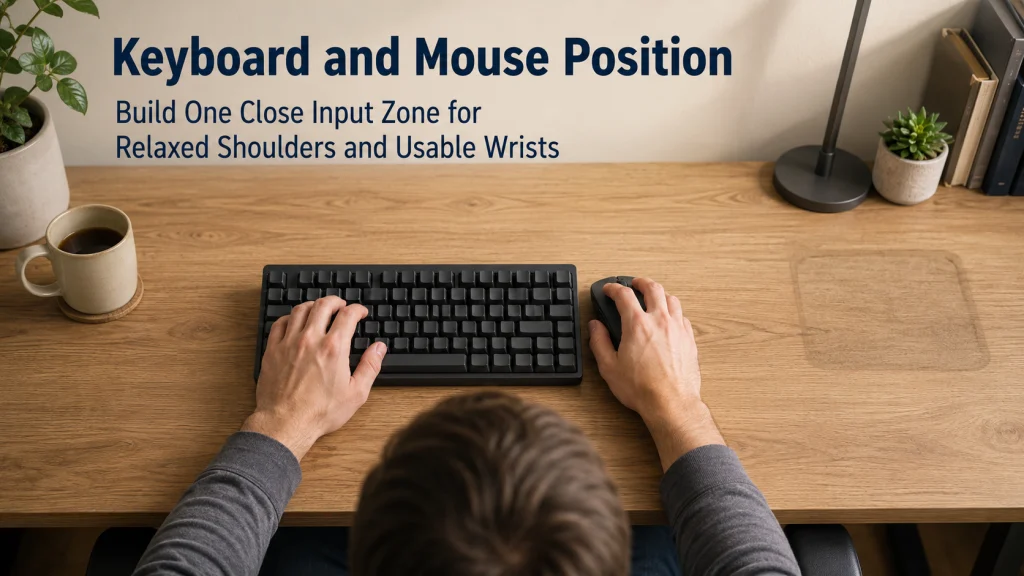
Keyboard and mouse position should be planned as one close input zone, not as two separate device decisions. Start from a supported sitting position with relaxed shoulders and elbows near the body, then place both inputs at a compatible height, distance, and orientation. Keyboard width, numpad use, tray capacity, desk height, and front-edge thickness can all change how far the pointer sits from the body. Test the arrangement during typing, pointing, dragging, scrolling, and shortcut use before deciding that a different device is necessary.
The Same Keyboard Can Create Three Different Mouse Reaches
Picture the same full-size keyboard in three work areas. In the first, the mouse sits beyond the numpad, so the user repeatedly moves the upper arm away from the body. In the second, a narrow tray holds the keyboard but forces the mouse onto a higher shelf. In the third, the keyboard and pointer sit beside each other on one stable surface, with both close enough to use without searching for space.
| Input-zone layout | What changes | Likely weekday effect |
|---|---|---|
| Full-size keyboard with mouse outside the numpad | The keyboard remains centered, but its width pushes the pointer farther sideways | Frequent pointing requires a wider reach even though the mouse itself has not changed |
| Keyboard on a narrow tray with mouse above it | The two inputs sit on different planes and at different distances | The user switches between typing and pointing by lifting the arm or changing wrist position |
| Keyboard and pointer placed together | Both devices share one close, stable input zone | Typing and pointing can alternate with less side travel and fewer position changes |
A desk can look tidy in a photo while still asking the user to reach hundreds of times during the day. The useful question is not whether the keyboard or mouse looks centered. It is whether both devices work together from the same supported posture.
Define the Input Zone Before Adjusting Individual Devices
The input zone is the small area where the hands spend most of the workday moving between the keyboard and the pointer. Easy reach means those movements can happen without repeatedly sending the upper arm far to the side or pulling the torso away from support. A pointer is any device used to move and select items on screen.
A neutral wrist is a practical working position that avoids a pronounced bend upward, downward, or sideways. It is not one rigid pose that must be held without movement. Contact stress occurs when a hard or sharp edge presses into the palm, wrist, or forearm. Task frequency describes how often an input is used, which determines where it deserves space.
One-input-zone framework: Support the body first, place the keyboard for frequent typing, bring the pointer beside it on a compatible plane, and then check whether device width, desk height, or tray space prevents both from staying close.
Start From Supported Shoulders and Elbows, Not Visual Centering
A desk can look symmetrical while the user quietly adapts to it for hours. The shoulders creep upward, the chair rolls forward, and the mouse drifts farther away as papers and chargers collect nearby. Begin in the supported working position already established through the broader ergonomic desk setup sequence. Sit back enough to use the chair support, place the feet securely, and allow the shoulders to settle before moving the inputs.
Bring the elbows near the body without pinning them tightly against the torso. Then look at where the hands naturally arrive. The keyboard and pointer should meet that working area rather than asking the user to slide forward, lift the shoulders, or reach past decorative objects.
Centering should follow the primary typing area, not necessarily the full outside width of the hardware. A full-size keyboard may be visually centered while the letter keys sit left of the torso and the mouse sits much farther right. What matters is the relationship between the frequently used keys, the pointer, and the body.
Set Keyboard Height and Distance Without Forcing Wrist Bend or Shoulder Lift
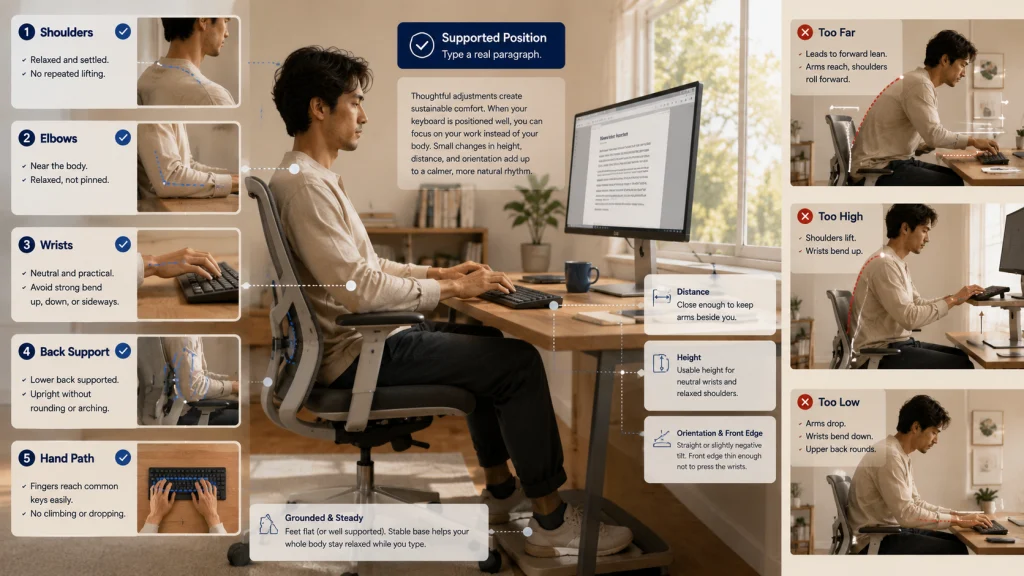
Move the keyboard close enough that the upper arms can remain near the body during ordinary typing. If the keyboard is too far away, the user may leave the back support and reach toward the desk. If it is too high, the shoulders may lift or the wrists may bend upward over the front edge. If it is too low, the user may lean forward or reach downward.
| Height-distance-orientation check | What to observe during real typing | Adjustment to test |
|---|---|---|
| Shoulders | Do they remain settled, or do they rise as the hands reach the keys? | Change the input height or bring the keyboard closer |
| Elbows | Can they stay near the body without being forced backward? | Reduce reach and clear objects from the input zone |
| Wrists | Do they bend sharply upward, downward, or sideways during common keys? | Recheck height, tilt, front-edge thickness, and device orientation |
| Back support | Does typing cause the torso to leave the chair support? | Bring the keyboard inward before changing the chair position |
| Hand path | Can the fingers reach common keys without the hands climbing or dropping noticeably? | Recheck the overall device height and orientation |
Do not chase one universal keyboard height. Desk thickness, chair range, keyboard shape, hand size, and task all influence the usable relationship. The better test is simple: can the user type a normal paragraph while staying supported, or does the body begin adjusting around the hardware?
Place the Mouse or Pointer Beside the Keyboard on a Compatible Plane
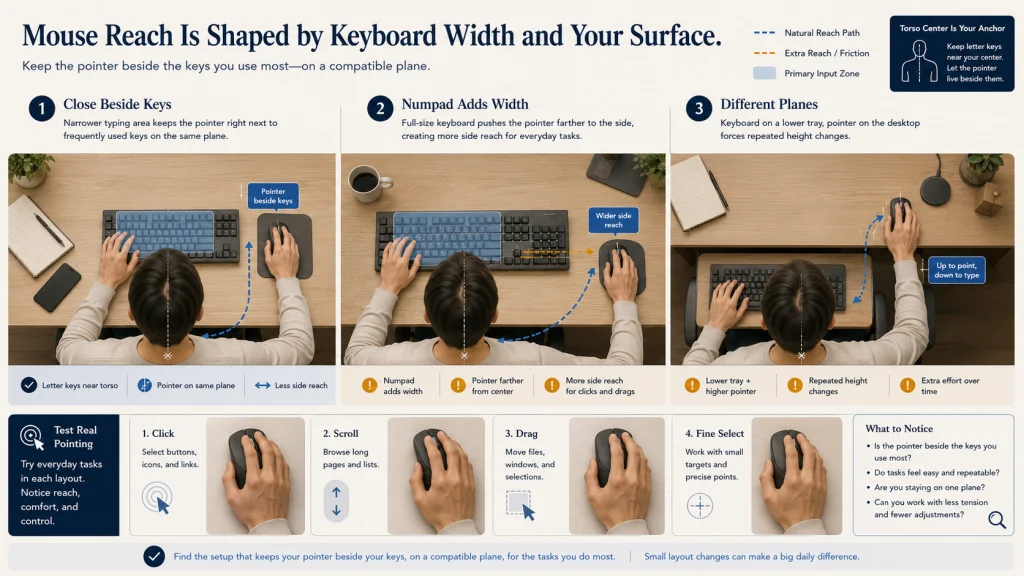
The pointer should not feel like a separate destination across the desk. When every scroll, click, and drag begins with a wide reach, a small layout problem repeats through the whole day. Place the pointer beside the keyboard, as close as practical to the keys used most often, and on a surface that does not require the hand to climb or drop between devices.
Keyboard-width and mouse-reach diagram:
Narrower typing area
Torso center → letter keys → pointer close beside the keys
Wider typing area with numpad
Torso center → letter keys → numpad → pointer farther to the side
Split-level arrangement
Keyboard on lower tray → pointer on higher desk → repeated height change between tasks
The pointer can be angled slightly if that better matches the forearm and available space, but avoid turning it so far that the wrist must hold a strong sideways bend. Test clicking, scrolling, dragging, and fine selection, not only resting the hand on the device.
Desk decorations, notebooks, chargers, and phones often push the mouse outward one small step at a time. Keep occasional items beyond the input zone so the most frequent pointing task retains the easiest reach.
Decide Whether Numpad Use Justifies the Added Width
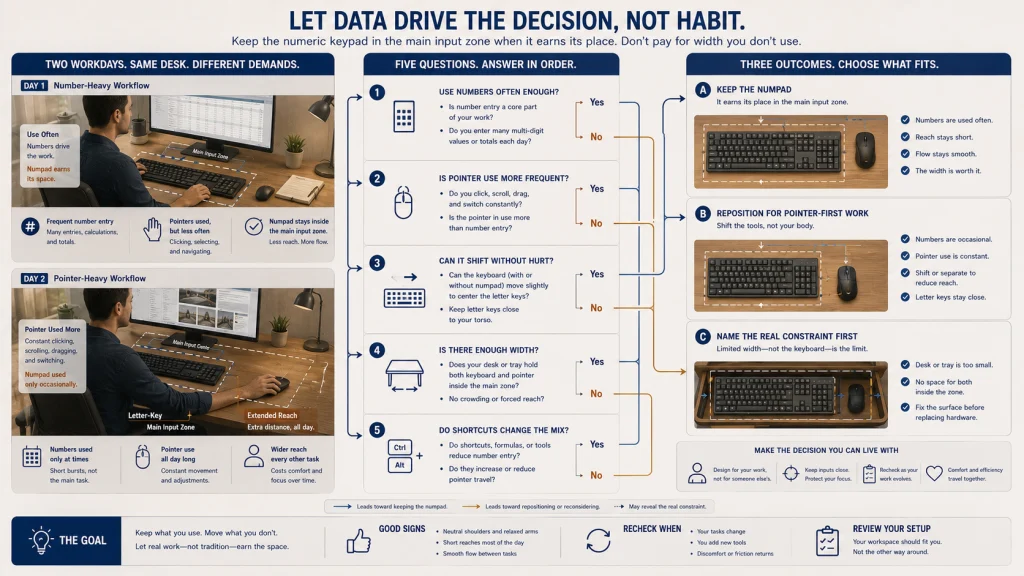
A numpad can be indispensable for someone entering numbers all day. For someone who touches it twice a week, it may quietly move the mouse farther away during every other task. Its value should be judged by actual work rather than by the assumption that a full-size layout is automatically more complete.
| Numpad-use question | What the answer changes |
|---|---|
| Is number entry a frequent part of the primary task? | Frequent use may justify keeping the numpad inside the main zone |
| Does the pointer move much more often than the numpad is used? | The added width may impose a daily reach cost for an occasional feature |
| Can the keyboard be shifted without moving the letter keys away from the torso? | A small position change may improve pointer reach without replacing hardware |
| Does the tray or desk have enough width for both devices? | Limited capacity may be the real constraint rather than either device alone |
| Would shortcuts reduce pointer use during number-heavy work? | Task patterns may change how much space each input deserves |
If the numpad is important, preserve it and solve the full input relationship honestly. If it is rarely used, its width should not silently determine mouse reach for every hour of the day.
Check Keyboard Tilt, Front-Edge Thickness, and Desk-Edge Pressure
After the overall height and reach feel workable, look at the smaller surfaces the hands meet all day. A thick keyboard front can make the hands approach from above. Raised rear feet can increase the slope. A hard desk edge can press into the palm or forearm when the devices sit too far back.
Test the keyboard in the orientation that allows ordinary key use with the least forced bend. Do not assume that extended tilt feet should always be raised. Their effect depends on the keyboard, work-surface height, and the way the user reaches the keys.
A palm or wrist support can provide a softer place during pauses, but it should not become a hard platform that holds the wrist in one position while the fingers reach. During active typing, avoid pressing heavily into the support or desk edge. Move the device, support, or body relationship when contact pressure keeps returning.
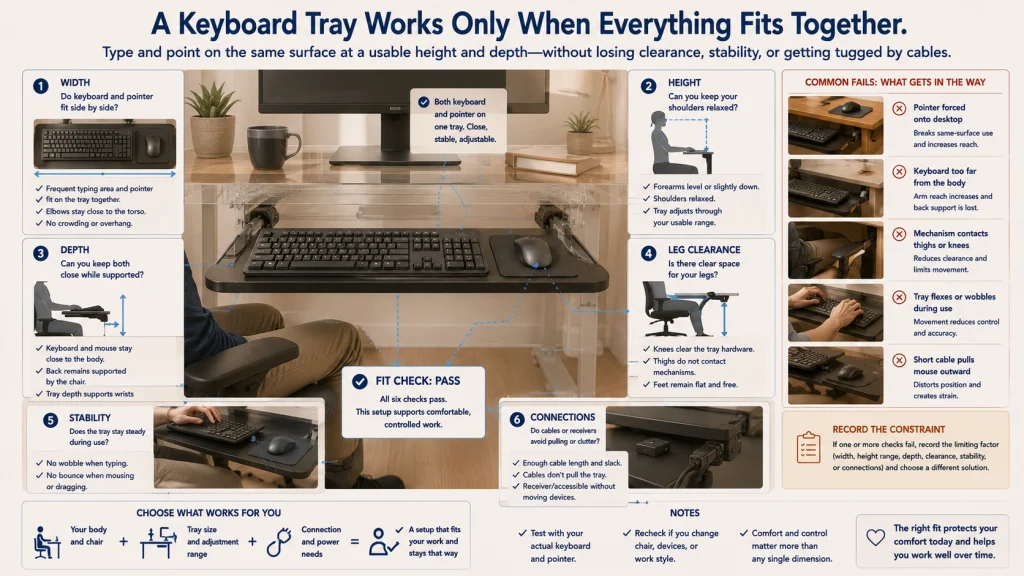
Check Whether a Tray Holds Both Devices Without Reducing Leg Clearance
A keyboard tray can appear to solve the desk-height problem and still split the work into two awkward levels. If it holds the keyboard but leaves the pointer on the desk, every switch between typing and pointing asks the arm to change height. A tray wide enough for both devices may still fail if its mechanism, thickness, or mounting position reduces knee and thigh clearance.
| Tray-fit test | Pass condition | Constraint to record |
|---|---|---|
| Combined width | The frequent keyboard area and pointer fit beside each other | Pointer pushed off the tray or keyboard shifted away from the torso |
| Height range | The tray reaches a usable input height without lifting the shoulders | Adjustment range stops above or below the needed position |
| Depth | The devices sit close without forcing the torso away from chair support | Tray depth or desk edge creates extra reach |
| Leg clearance | Knees and thighs move freely beneath the mounted hardware | Mechanism, drawer, or surface thickness occupies the needed space |
| Stability | The tray remains steady during typing, clicking, and dragging | Movement or flex changes the input position during use |
| Cable and receiver fit | Cables, receivers, and charging access do not pull devices out of position | Cable length or connection placement limits the usable arrangement |
If the tray cannot hold the two frequent inputs together, record that limitation before buying another mouse or keyboard. The problem may be tray capacity, mounting range, or desk clearance rather than device design.
Use Shortcuts, Pointer Settings, and Alternate Patterns to Reduce Repeated Reach
Once the devices are close, the next gains may come from the work itself. A command repeated fifty times can matter more than a device used only occasionally. Keyboard shortcuts can reduce repeated trips to the pointer, while pointer speed and sensitivity settings can change how much desk movement is needed for the same screen travel.
Alternate patterns can also redistribute ordinary use. Some people occasionally use the other hand for simple pointing tasks, switch between a pointer and keyboard commands, or reserve one input method for a particular application. These are workflow experiments, not treatments for symptoms.
Change one variable at a time and test it during the real task. A pointer setting that feels efficient for general navigation may feel too sensitive for precise selection. A shortcut is useful only when it reduces effort without adding errors or mental burden.
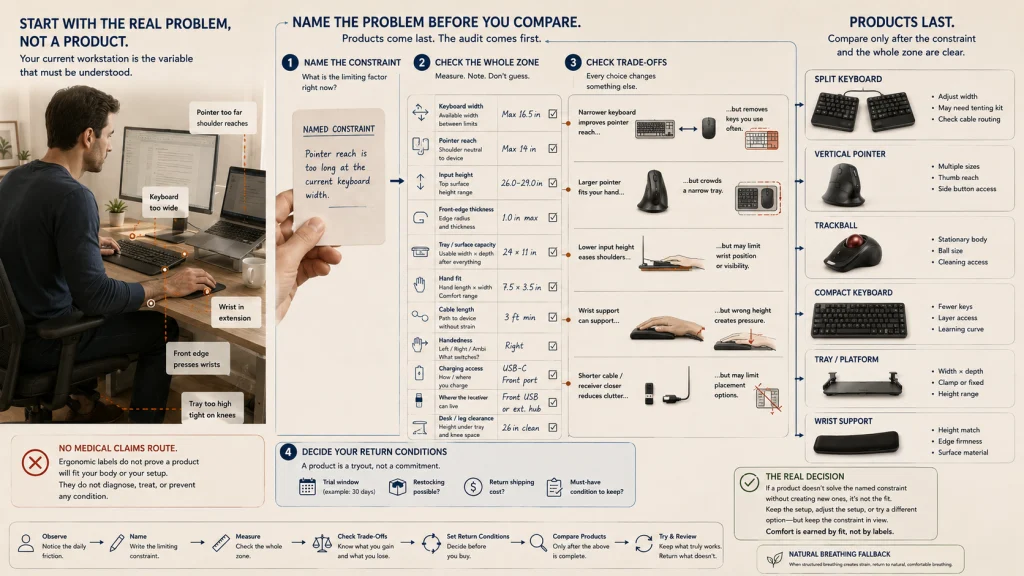
Define the Position Problem Before Comparing Input Products
When a workstation feels wrong, a new device can seem like the most concrete next step. Split keyboards, vertical mice, trackballs, compact layouts, and wrist supports do change the input relationship, but each changes a different part of it. None should be treated as an automatic answer before the current limitation is named.
Product-last boundary: Identify whether the remaining constraint is keyboard width, pointer reach, device height, front-edge thickness, tray capacity, hand fit, cable length, handedness, charging access, or desk clearance before comparing alternatives.
A device can be labeled ergonomic while its dimensions force a poor relationship with the rest of the workstation. A narrow keyboard may improve pointer reach but remove keys used constantly. A larger pointer may fit one hand comfortably while crowding a narrow tray. A wrist support may match the keyboard poorly when its height or edge creates pressure.
Compare dimensions, adjustment range, handedness, connection requirements, receiver placement, charging routine, return conditions, and compatibility with the available surface. Do not use a product label as a medical claim or as proof that the device fits the user.
Route Fixed Desk Mismatch and Product Choice to the Correct Next Decision
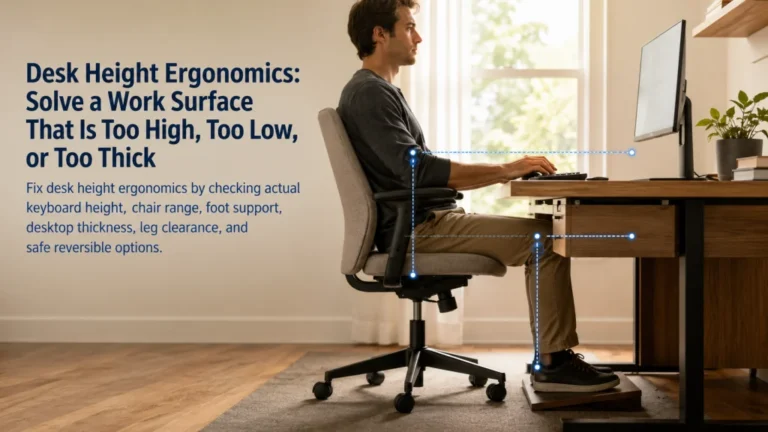
If the keyboard and pointer cannot reach a compatible height because the work surface is fixed, moving the devices around may only trade one problem for another. The next question is desk height ergonomics, which addresses surface height, chair range, leg clearance, and input placement together.
If the screen and keyboard are physically attached, use the laptop ergonomics guide to separate viewing and input needs. Moving a laptop keyboard closer also moves the screen, so the full relationship requires a different approach.
When the position problem is already defined and the remaining decision concerns a keyboard, pointer, tray, or support category, review ergonomic equipment choices. For the broader sequence that connects chair, feet, inputs, screen, and work surface, return to home office ergonomics and the complete posture and ergonomics guide.
Stop Desk Troubleshooting for Persistent Hand or Nerve Symptoms
This article can help identify reach, height, pressure, and workspace constraints. It cannot diagnose carpal tunnel syndrome, tendon disorders, nerve compression, repetitive strain injury, or another medical condition from symptoms or a workstation photograph.
Safety warning: New, severe, persistent, worsening, or unexplained pain, numbness, weakness, tingling, loss of dexterity, or loss of hand function requires appropriate professional evaluation. Symptoms after an injury, significant vision change, severe headache, balance change, chest pain, severe shortness of breath, or fainting also require appropriate guidance or urgent help based on severity.
Do not keep changing devices, angles, or supports in an attempt to diagnose the cause. Record when the symptoms occur, which tasks are involved, and what ordinary position changes have already been tried, then seek qualified guidance.
Keep One Close Input Zone and Name the Remaining Constraint
Start from supported shoulders, elbows, and back support. Bring the keyboard close, place the pointer beside it on a compatible plane, and notice what happens after ten ordinary minutes, not only during a careful setup check. The arrangement should still feel usable when attention has returned to the work.
Then test the work that actually fills the day: typing, scrolling, dragging, number entry, shortcuts, and precise selection. If the arrangement still fails, name the exact constraint before considering equipment. Keyboard width, numpad use, desk height, tray capacity, front-edge thickness, device dimensions, or cable access may be the real limit.
A useful input zone is not defined by how orderly the desk looks. It is defined by whether the frequent inputs stay close, work together, and let the user focus on the task instead of repeatedly negotiating with the desk.
FAQs
⌨️ Should the keyboard be centered on the desk?
Center the frequently used typing area with the torso rather than centering the full outside case automatically. A wide numpad can make the keyboard look centered while shifting the letter keys and pointer away from the easiest reach.
🖱️ How close should the mouse be to the keyboard?
Place it beside the keyboard and close enough that ordinary pointing does not require a repeated wide side reach. The exact arrangement depends on keyboard width, device size, handedness, tray space, and the tasks performed most often.
🔢 Is a compact keyboard always better for mouse reach?
A narrower keyboard can create more room for the pointer, but it may remove keys that are important for the user’s work. Compare the reach benefit with numpad frequency, shortcut use, and the added steps required by the smaller layout.
📐 Should I raise the keyboard feet?
Not automatically. Raised feet change the keyboard slope and may increase the angle required at the wrist. Test the available orientations with the actual work-surface height and choose the one that allows ordinary typing without a pronounced bend.
🧱 Can a wrist rest fix a keyboard that is too high?
A support may soften contact during pauses, but it does not correct an incompatible input height or desk relationship. Fix the height, distance, and edge-pressure problem first, then evaluate whether a support fits the remaining need.
🗂️ What if my tray holds the keyboard but not the mouse?
That tray does not support one coordinated input zone. Record the width and height limitation before changing devices, because tray capacity or mounting range may be the actual problem.
⚠️ When should I stop adjusting the workstation?
Stop treating the desk as the only explanation when numbness, weakness, tingling, loss of dexterity, loss of hand function, or persistent or worsening symptoms are present. Seek appropriate professional evaluation rather than continuing product experiments.