Learning how to set up a fitness tracker starts before Bluetooth pairing. Confirm the exact device, phone, operating system, official app, and account first, then establish ownership, review permissions, enter required baseline information, update the software, and prove that one complete sync has finished. Keep goals and alerts minimal until the setup chain is stable. A new wearable reading, score, or alert should not be treated as a diagnosis or medical clearance.
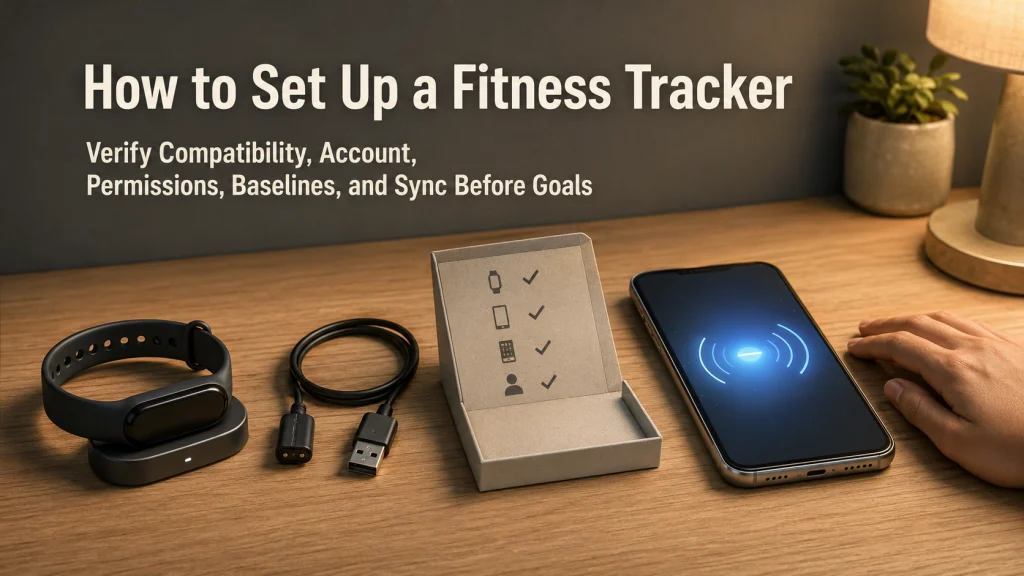
Pairing Is the Last Link in the Setup Chain
A tracker may appear in the phone’s Bluetooth list while the rest of the setup is still wrong. The box may name one model, the device may broadcast a shortened Bluetooth name, the phone may run an unsupported operating system, the installed app may be outdated or unofficial, and the selected account may belong to someone else.
That is why the visible pairing step comes last in a five-part compatibility chain:
| Chain link | What must match | Why it matters |
|---|---|---|
| 1. Device | Exact model, variant, serial number, and ownership status | Similar-looking versions may use different apps, chargers, or requirements. |
| 2. Phone | Exact phone model and available connection features | The phone must support the setup method required by the device. |
| 3. Operating system | Current installed version, not the version the phone could theoretically run | App availability and permissions can change by operating-system version. |
| 4. Official app | Correct app, current version, correct publisher, and regional availability | The official setup flow assigns the device to the right account and settings. |
| 5. Account | An account you own, can recover, and intend to keep using | Sync history, security, backups, and future device changes depend on it. |
Use the broader wearable technology decision guide when you still need to understand what this type of device can and cannot do. Once setup is complete, the practical steps in using a fitness tracker day to day become more useful.
Record the Exact Device, Ownership Status, and Charger
Do not begin with the name shown in Bluetooth settings. Record the model name from the device information screen, packaging, receipt, or official model-identification page. If a serial number is available, compare it with the packaging or purchase record before signing in.
- Exact model and size or variant, when applicable.
- Serial number or other device identifier.
- New, open-box, refurbished, replacement, or previously owned status.
- Whether the device reaches a clean setup screen.
- Whether the included charger is intended for that exact model.
- Whether the cable, contacts, and device body show damage.
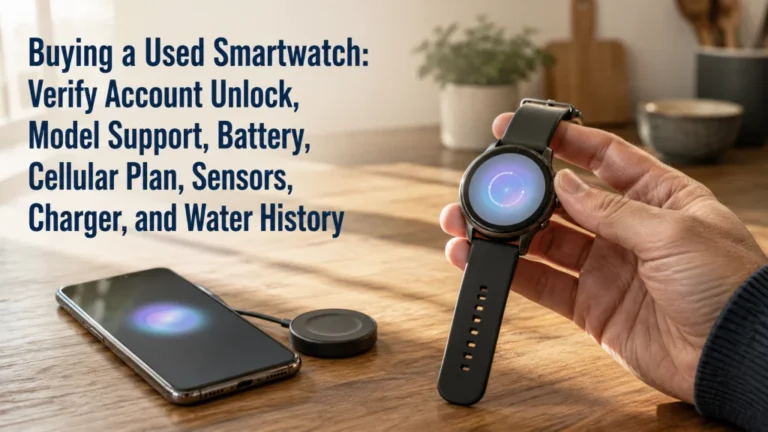
Editorial observation: Open-box, refurbished, replacement, and older devices can retain account links, outdated software, missing chargers, or requirements that no longer match the buyer’s phone. The correct model name on the box does not prove that the phone’s current operating system supports the current app.
If the box, device information, serial record, or charger does not match, stop before adding an account. A mismatch is easier to resolve before personal data enters the setup.
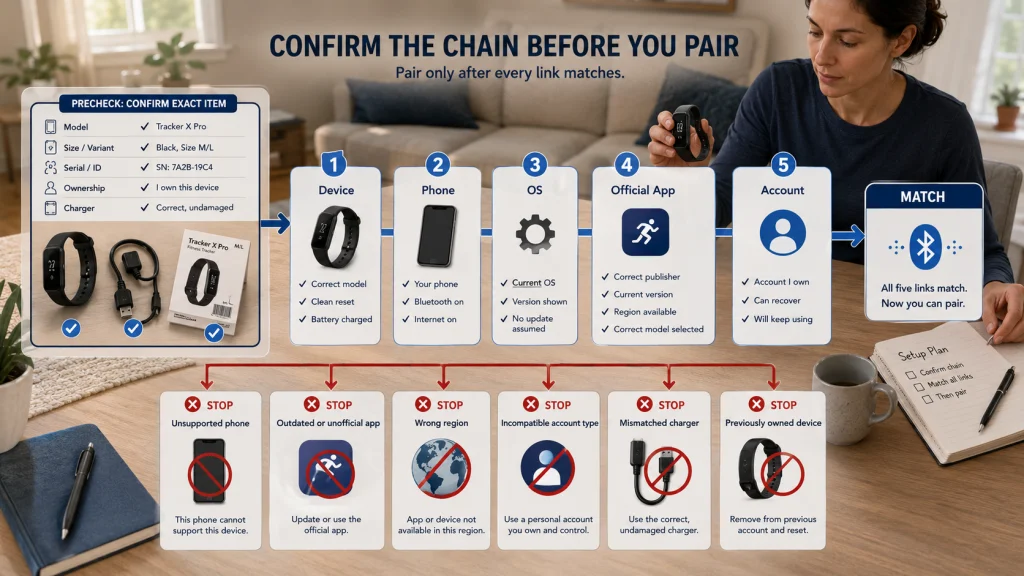
Verify Current Phone, App, Region, and Account Requirements
Compatibility requirements can change after a device is manufactured. Check the official support page for the exact model on the day of setup, then compare it with the phone and app actually in front of you.
Compatibility review date: July 29, 2026. This date records when the setup principles in this article were reviewed. It does not replace a fresh check of the official requirements for a specific model, phone, operating system, app, or region.
- Confirm the phone model is supported.
- Open the phone settings and record the installed operating-system version.
- Confirm that the official app is available in the phone’s current region.
- Check whether the app requires an individual account, family account, or another account type.
- Check whether any planned feature has separate phone, region, age, subscription, or eligibility requirements.
Key decision: If the current official requirements do not support the phone, operating system, region, or account type you intend to use, do not continue pairing in the hope that Bluetooth alone will make the system work.
Clear Previous-Owner Controls or Return the Device
A factory-reset screen does not always prove that ownership controls have been removed. Some devices can be erased while remaining linked to the previous owner’s account. The problem may not appear until the account step near the end of pairing.
Use this ownership checklist for an open-box, refurbished, replacement, or used device:
- The device starts at the official setup screen, not another person’s dashboard or passcode screen.
- The seller or previous owner has removed the device from their account.
- No previous-owner password, passcode, approval, or activation credential is requested.
- Any cellular or paid service attached to the previous owner has been removed when applicable.
- The receipt, seller record, or replacement paperwork identifies the device you received.
- You can add the device to your own account through the official flow.
Safety warning: Do not attempt to bypass an activation lock, account lock, passcode, or previous-owner control. Ask the legitimate owner to remove the device correctly, use official support with valid proof of purchase, or return the device when ownership cannot be cleared.
Charge and Update the Phone and Device as Instructed
Setup often includes account verification, software downloads, restarts, and a first sync. A low battery or outdated app can interrupt that chain and make a compatibility problem look like a random connection failure.
- Inspect the charger and device for visible damage, debris, moisture, or poor contact.
- Use the charging method identified for the exact model.
- Charge before setup when the official instructions require it.
- Update the phone’s operating system when the model remains supported and the update is appropriate for the phone.
- Install or update the official companion app from the phone’s official app store.
- Keep the phone and device close, powered, and connected as instructed during the update.
Do not invent a required charge percentage or interrupt an update because another model used a different rule. Follow the current instructions for the device being configured.
Start in the Official App, Not Only in Bluetooth Settings
Bluetooth is a connection method, not the complete setup process. The official app or watch setup assistant normally handles account assignment, required permissions, software checks, profile fields, backup choices, and the first sync.
- Turn on Bluetooth and any network connection required by the official instructions.
- Open the official app or phone setup assistant.
- Select the command for adding, replacing, or setting up a device.
- Choose the exact model shown by the app.
- Confirm any code or visual pairing prompt shown on both screens.
- Continue inside the official setup flow until it reports completion.
If the tracker was manually paired from the phone’s Bluetooth menu first and the official app cannot finish setup, follow the official recovery steps for that ecosystem. Do not repeatedly create and delete pairings without knowing which account or app owns the connection.
Choose the Correct Account and Secure It
Select an account you personally control and expect to keep. A work, school, temporary, seller-created, or casually shared account can create problems later when you need account recovery, a new phone, an export, or a replacement device.
- Confirm the email address or account identifier before accepting setup.
- Use a unique password and the platform’s available account-security options.
- Check that recovery email addresses and phone numbers belong to you.
- Review whether setup will create a new profile, attach to an existing profile, or restore a backup.
- Do not restore old settings automatically when you do not know what the backup contains.
- Do not place another adult’s device inside your account merely to finish pairing.
A replacement device may offer to restore settings from an older wearable. Review the proposed settings rather than assuming every old permission, alert, unit, wrist choice, and feature remains appropriate.
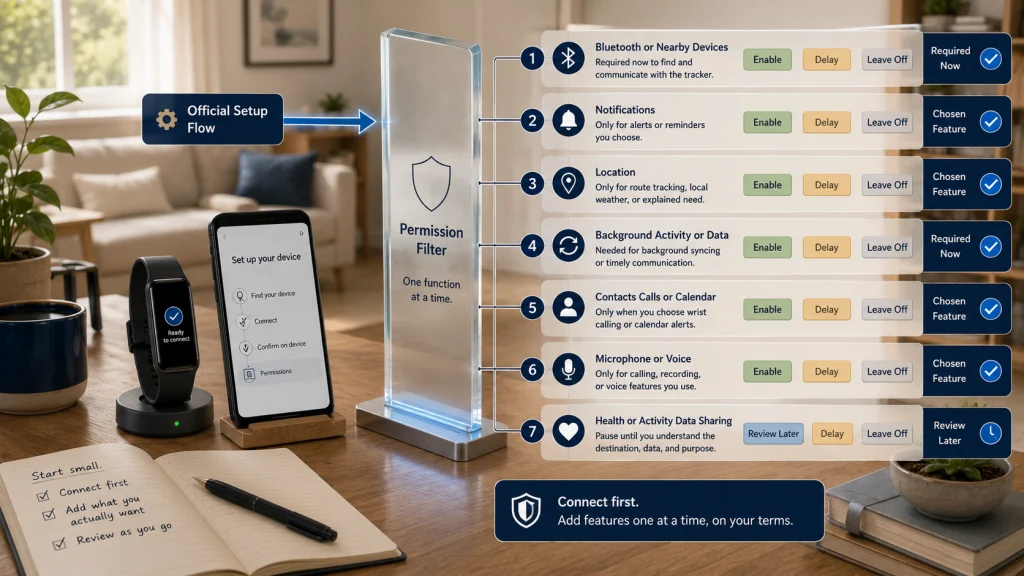
Review Permissions One at a Time
Granting every permission may make setup faster, but it also makes it difficult to tell which access is essential. Read each prompt, connect it to a feature you intend to use, and remember that many permissions can be changed later.
| Permission or access | Enable when | Leave off or delay when |
|---|---|---|
| Bluetooth or nearby devices | The official setup flow needs it to find, pair, and communicate with the wearable. | The request comes from an unrelated app or does not identify the setup function. |
| Notifications | You want selected phone alerts or device reminders on the wrist. | You are still confirming the basic connection or do not want wrist alerts yet. |
| Location | A chosen feature needs routes, local weather, or location access, or the official setup explains a system-level requirement. | You do not plan to use the feature and the setup flow does not require the permission for connection. |
| Background activity or data | The official instructions explain that it supports background syncing or timely device communication. | You prefer manual syncing and understand the possible loss of background updates. |
| Contacts, calls, or calendar | You deliberately want those functions on the wearable. | Your setup goal is basic activity tracking and the functions are not needed. |
| Microphone or voice access | You plan to use calling, recording, or a voice feature that clearly requires it. | The device has no chosen voice function or the prompt is unexplained. |
| Health or activity data sharing | You understand which app receives the data and want that connection. | The destination, data categories, retention, or purpose is unclear. |
For a deeper permission review after the initial connection, use the guide to fitness tracker app permissions. Setup should not become an automatic approval of every future feature.
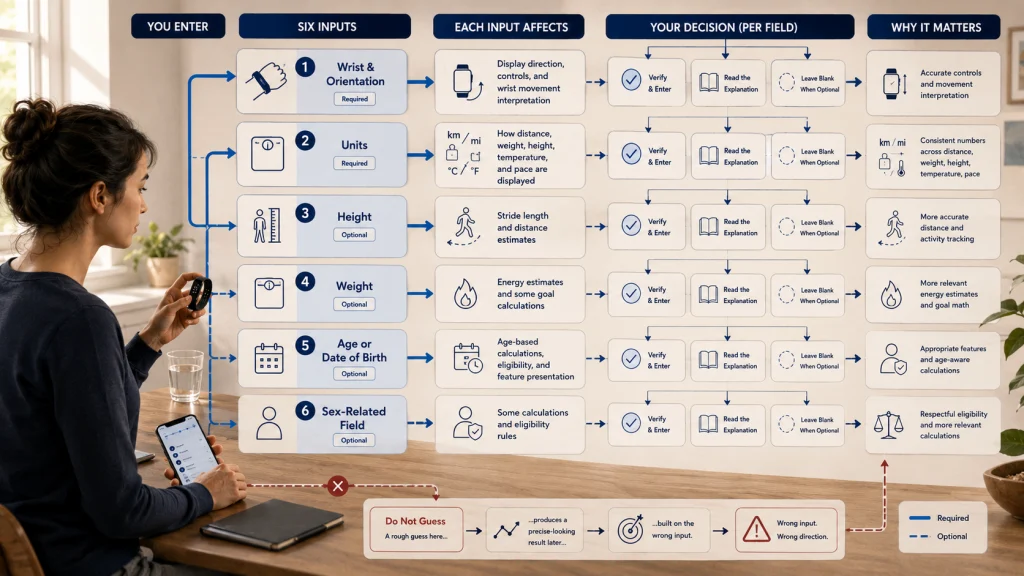
Enter Required Baseline Information Without Guessing
Some setup fields change how the device displays information or produces estimates. Enter them accurately when required, read the app’s explanation, and leave optional fields blank when the system allows and they do not support a feature you plan to use.
| Field | How it may be used | Setup approach |
|---|---|---|
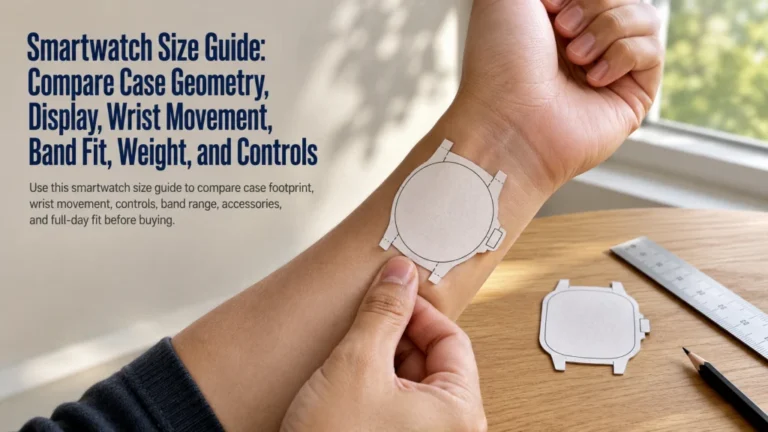
| Wrist and orientation | Display direction, controls, and interpretation of wrist movement | Select the wrist and orientation you will actually use. |
| Units | Distance, weight, height, temperature, and pace display | Choose the system you can read consistently. |
| Height | Stride and distance estimates | Measure or verify rather than entering a rough guess. |
| Weight | Energy estimates and some goal calculations | Use a current value when required, then update it only when useful. |
| Age or date of birth | Age-based calculations, eligibility, and feature presentation | Enter the correct information for the account owner. |
| Sex-related field | Some calculations or feature-eligibility rules | Read the platform’s explanation and do not invent an answer merely to continue. |
If a required field is unclear, pause and read the official help text or contact official support. A guessed baseline can make later estimates look precise while resting on the wrong input.
Keep Default Goals and Alerts Minimal
The setup screen may offer activity targets, reminders, social features, health-related notices, app previews, and promotional messages before you know how the device behaves. Turn on only what supports the reason you bought or reset the wearable.
- Keep a neutral default goal when the app requires one.
- Choose one or two useful alerts rather than enabling every category.
- Delay optional health-related features until you have reviewed eligibility, instructions, limits, and regional availability.
- Leave social sharing and promotional communication off unless you actively want them.
- Do not use the first day’s estimates to set aggressive targets.
After the basic setup is stable, refine which notifications deserve wrist attention and use a separate process for setting realistic tracker goals.
Complete One Sync and Record the Time
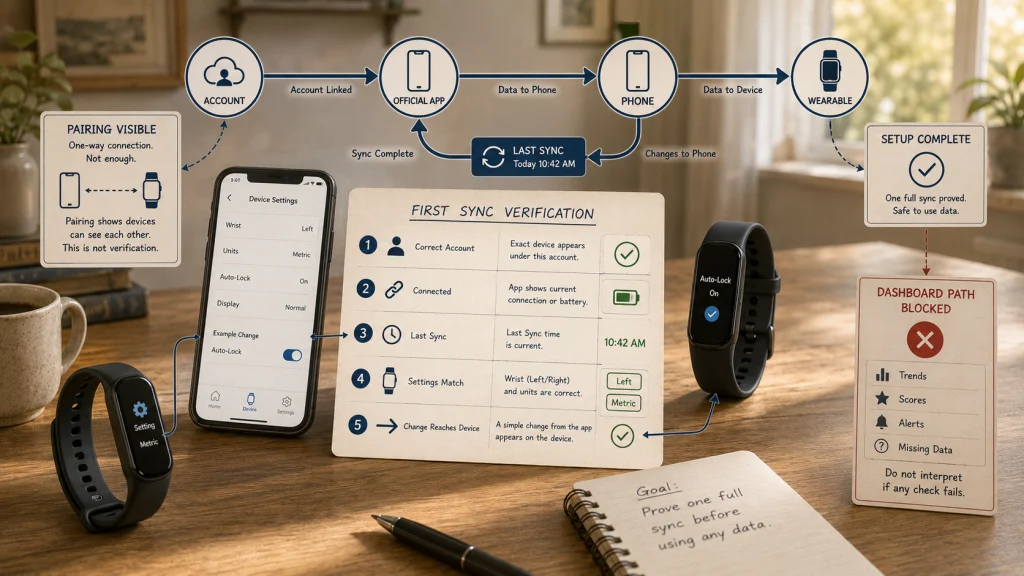
Pairing is not finished when the device merely appears in a list. Wait until the app and wearable show that setup and synchronization have completed.
First-sync verification card: Confirm the exact device is listed under your account, the app shows a current connection or battery status, the last-sync time updates, the selected wrist and units appear correctly, and one simple non-sensitive setting change reaches the device. Record the last-sync time before closing the app.
If any part of the card fails, do not start interpreting trends, scores, alerts, or missing data. Fix the setup chain first.
Safety warning: Do not use a new wearable reading, score, trend, or alert to diagnose symptoms, provide medical clearance, or delay care. Urgent or severe symptoms require appropriate medical attention regardless of what the device displays.
Stop When Setup Becomes Troubleshooting or Migration
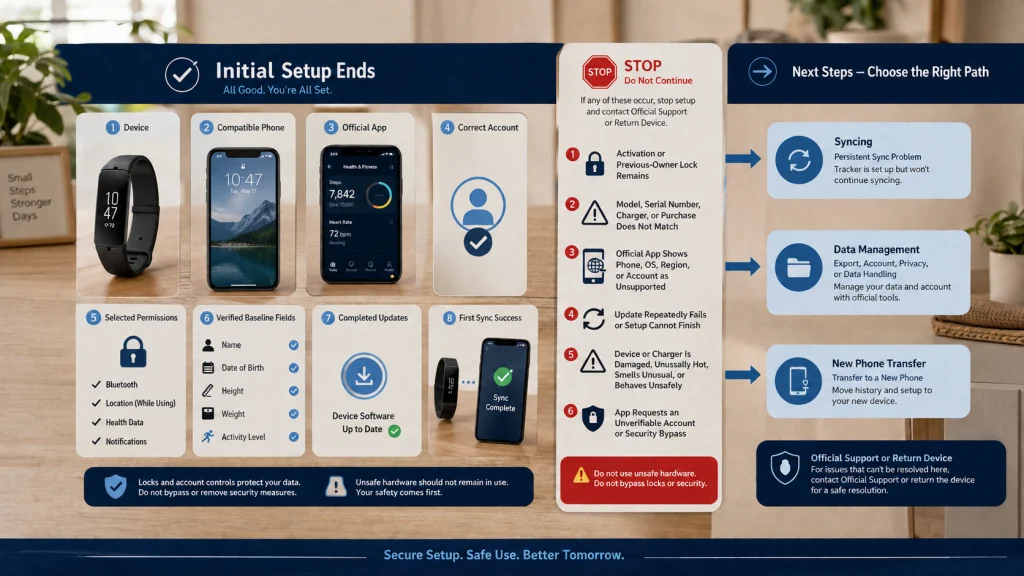
This article ends after the exact device, compatible phone, official app, correct account, selected permissions, baseline fields, updates, and first complete sync have been confirmed.
Stop the initial setup process and use official support when:
- An activation or previous-owner lock remains.
- The model, serial number, charger, or purchase record does not match.
- The official app says the phone, operating system, region, or account is unsupported.
- An update repeatedly fails or the device cannot complete the official setup flow.
- The device or charger is damaged, becomes unusually hot, smells unusual, or behaves unsafely.
- The app asks for an account or security bypass you cannot verify.
For a device that was set up correctly but will not keep syncing, follow the separate fitness tracker syncing checks. For exports, account lifecycle, and recurring data handling, use the fitness tracker data management guide. Moving history between phones belongs in the guide to transferring tracker data to a new phone.
Finish the Setup Chain Before Using the Dashboard
A reliable setup has five visible results: the exact model is confirmed, ownership belongs to you, the phone and official app meet current requirements, permissions and baseline fields reflect deliberate choices, and the last-sync time proves that the account, phone, and wearable exchanged data.
Do not rush from a Bluetooth connection into goal setting or data interpretation. Verify the chain, clear ownership, update the system, minimize access, and confirm one complete sync first. That gives every later setting a known starting point.
FAQs
🔗 Can I pair a fitness tracker only through Bluetooth settings?
Usually, Bluetooth alone is not the complete setup. Start from the official app or phone setup assistant so the device is assigned to the correct account, permissions, profile, updates, and sync process.
🔐 What if a used tracker asks for the previous owner’s account?
Stop setup. The legitimate previous owner must remove the device from their account through the official process, or official support must confirm ownership from valid documentation. Do not use unofficial bypass instructions.
📱 Do I need to allow every permission during setup?
No. Allow the access needed for the connection and the features you deliberately choose. Leave optional permissions off until the app clearly explains why they are needed.
📏 What should I do if I do not know an exact baseline value?
Measure or verify the value when it affects estimates and the field is required. When a field is optional, leave it blank if the app permits rather than entering a guess that may shape later calculations.
🔄 How can I tell whether the first sync finished?
Check that the exact device appears under your account, the app shows a current connection status, and the last-sync time updates. A simple setting such as units or wrist orientation should also appear correctly on the device.
🩺 Can I trust health readings as soon as setup ends?
Setup only confirms that the system is connected and exchanging data. It does not turn a consumer wearable into a diagnosis, treatment plan, or medical clearance, and concerning symptoms should not be dismissed because a reading looks normal.