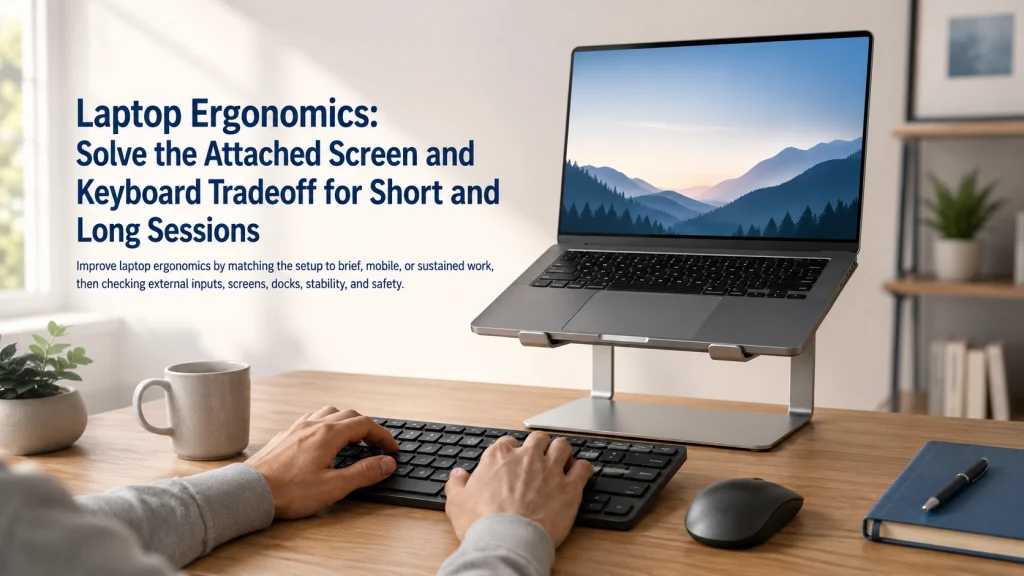
Laptop ergonomics begins with one design constraint: the screen and keyboard are attached, so improving one position usually makes the other less convenient. Brief work can often use a supported compromise, but sustained typing usually works better when the keyboard and pointing device are separated from the display. Choose between direct use, a raised laptop with external inputs, an external monitor, or a docked setup based on the task, desk depth, compatibility, and setup effort. Keep a simpler portable fallback for locations where the full desk arrangement is not realistic.
A Laptop Creates an Attached Screen and Keyboard Tradeoff
A laptop behaves like an impossible triangle. Raise the screen and the keyboard rises with it. Lower the keyboard and the screen drops below the viewing position. Pull the device closer for easier typing and the display moves closer too, changing the viewing distance. The compromise is easy to ignore during a quick check and much harder to ignore after an hour of looking down, reaching forward, or rebuilding the same temporary setup.
Attached screen-keyboard triangle:
Raise the screen
Better display position, but higher keys and a longer reach.
Lower the keyboard
Easier hand position, but a lower display.
Move the laptop closer
Shorter typing reach, but less viewing distance and less desk space.
Break the triangle
Separate the screen from the keyboard or separate the keyboard from the screen.
The hinged design always asks for a compromise until one component is separated. The useful response is not to chase a flawless angle, but to decide how much compromise the current task can reasonably tolerate. A short message, a mobile work block, and sustained typing at a regular desk deserve different levels of setup.
Define Direct Use, External Inputs, Displays, Docks, and Fallbacks
Direct use means working from the built-in display, keyboard, and pointing surface without separating them. It preserves the reason many people chose a laptop in the first place: open it, begin, and move on. The tradeoff is that the screen and hand positions remain tied together.
Sustained use is work that is intensive or long enough for the attached design to become a practical limitation. It is defined by the task and the way the setup behaves, not by one universal time cutoff.
External input means a separate keyboard and mouse, trackball, or other pointing device. The laptop display can then be raised or moved without carrying the hands with it. An external display places the primary screen independently while the laptop can remain lower, closed when supported, or positioned as a secondary screen.
A dock or connection center joins the laptop to displays, power, storage, network, and peripherals through a compatible connection. A portable fallback is a simpler arrangement for temporary locations where the complete home setup is too bulky or slow to assemble.
The broader home office ergonomics guide places this decision within the full relationship among chair, feet, work surface, inputs, and display.
Classify the Session by Task Intensity and Setup Friction
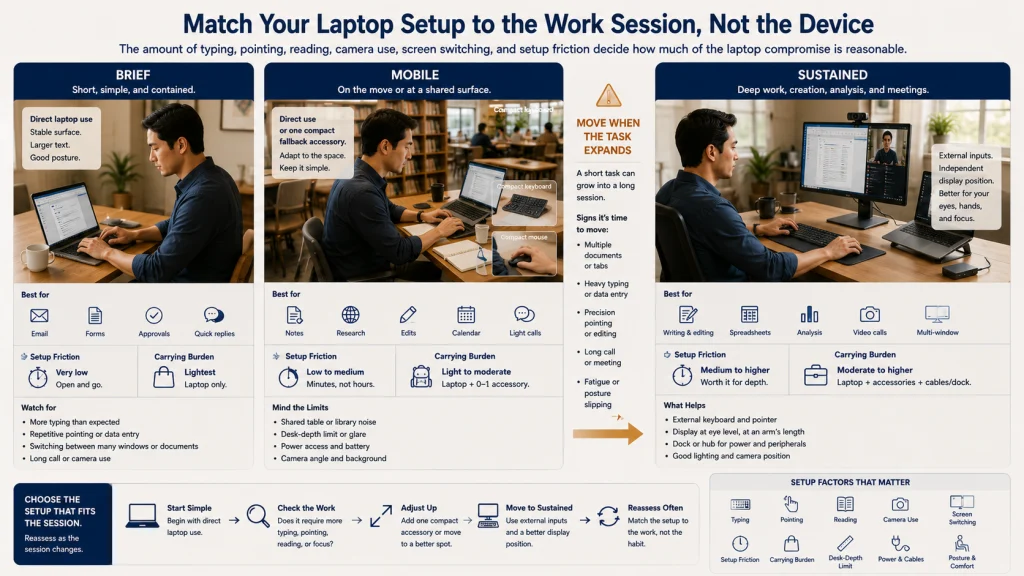
A five-minute message, a half-day of spreadsheet work, and an afternoon of video calls do not need the same arrangement. The problem is that short tasks often expand quietly. One reply becomes a document, one call becomes an afternoon, and the temporary position becomes the workday. Classify the session before that shift happens.
| Session type | Typical work | Reasonable starting setup | Main limit to watch |
|---|---|---|---|
| Brief | Quick email, short search, simple form, or temporary check-in | Direct laptop use with larger text, stable support, and position changes | The short task quietly expands into a longer session |
| Mobile | Work between rooms, shared spaces, library tables, or temporary desks | Direct use or a compact external-input fallback | Setup time, carrying burden, limited depth, and unreliable surfaces |
| Sustained | Writing, data entry, editing, design, long meetings, or repeated navigation | Separated external inputs, an external display, or a stable docked arrangement | The full setup is too difficult to assemble every day |
The classification is practical rather than medical. Think about how much typing, pointing, reading, camera use, and screen switching the task requires, then include the effort needed to assemble the setup. A sophisticated arrangement that remains in a drawer because it is too awkward to rebuild does not improve the workday.
Accept a Managed Compromise for Brief Direct Use
Direct laptop use can be reasonable for a brief task when the surface is stable and the screen-keyboard compromise is understood. There is no need to unpack a full workstation to answer one message. The goal is simply to keep a short task from becoming an awkward half hour without noticing.
Text that is too small often pulls the body toward the screen before the user realizes it. Increase text size or application scaling, place the laptop close enough for the hands without crowding the display, and use available support for the back and feet. Small position changes are useful during a short session because the laptop itself cannot provide independent screen and keyboard placement.
Notice when the brief task has changed. Opening several documents, beginning a long reply, joining an extended call, or starting repeated mouse work can turn a quick check into sustained use. That is the point to move to the regular desk or connect external inputs rather than continuing with the original compromise.
For everyday temporary locations beyond the main workstation, use the broader everyday ergonomics guide.
Separate the Keyboard and Pointer for Sustained Typing
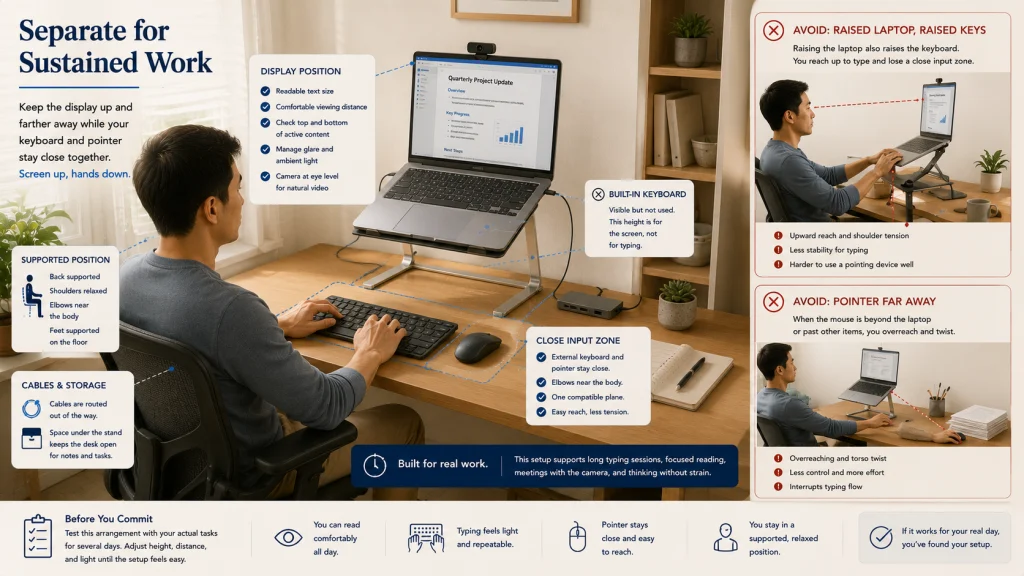
When typing and pointing dominate the session, external inputs break the compromise that direct use could only manage. The display can move upward or farther away while the keyboard and pointer stay close to the body. That separation matters most when the user is no longer thinking about posture and is simply trying to finish the work.
Start from a supported position, then bring the external keyboard and pointer into one close input zone. Keep them on a compatible plane and avoid placing the mouse beyond the laptop, a wide keyboard, or a stack of papers. The guide to keyboard and mouse position covers that relationship in detail.
Once the hands have their own position, adjust the laptop display for readable content rather than simply raising the frame as high as possible. Check text size, viewing distance, active content, glare, and camera use. The dedicated guide to monitor height and distance explains those display decisions.
External inputs add objects, cables, charging, storage, and setup time. Keep enough desk space to store the built-in keyboard area without forcing the external devices too far forward.
Compare a Raised Laptop With an External Monitor
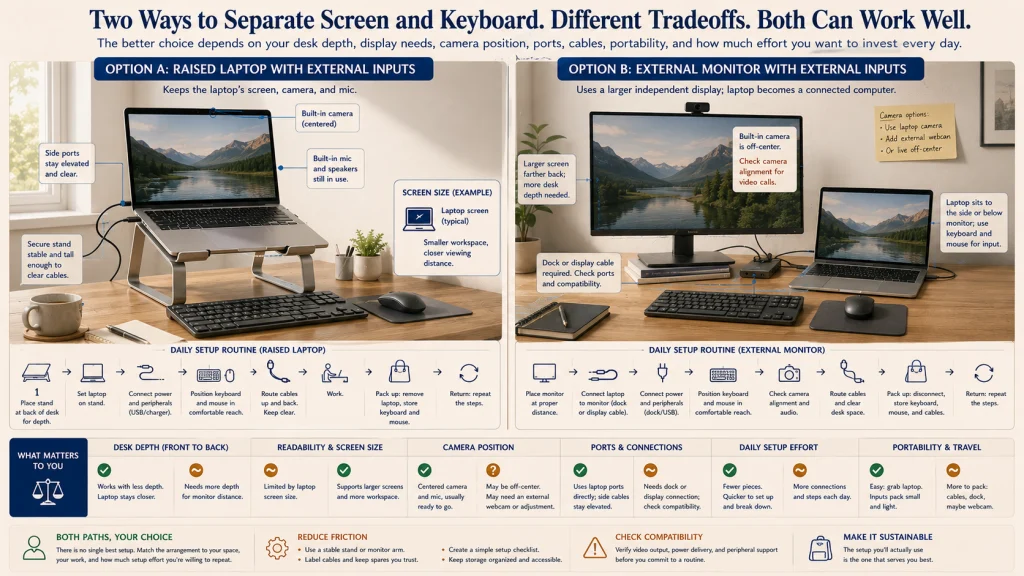
Raising the laptop can look like the obvious answer, yet it may turn a portable computer into a daily construction project. An external monitor may provide a larger independent viewing surface, preserve access to the laptop ports, and avoid lifting the built-in camera too high. A raised laptop may use less equipment and keep the built-in camera, microphone, and display together.
| Decision factor | Raised laptop with external inputs | External monitor with external inputs |
|---|---|---|
| Desk depth | The stand, laptop footprint, and external keyboard must all fit without crowding | The monitor may sit farther back while the laptop moves aside or below |
| Screen size and readability | Uses the existing laptop display and its available scaling | Provides an independently sized primary viewing surface |
| Camera position | The built-in camera moves with the raised display | The laptop camera may sit off-center unless another camera arrangement is used |
| Ports and cables | Raised side ports may leave cables hanging or pulling | Display connections add compatibility and cable-routing requirements |
| Daily setup | The laptop must be placed securely on the stand and connected to inputs and power | A docked desk may reduce daily connections when compatibility is verified |
| Portability | The stand and external inputs may need storage or travel space | The monitor stays at the desk and the laptop leaves with fewer accessories |
Editorial observation: Adding a stand can reduce portability and create a separate daily assembly routine that the buyer may not maintain. The useful comparison includes the time and storage needed to build the setup, not only the position it creates once assembled.
The better arrangement is the one that fits the real desk and can be rebuilt without frustration. A raised laptop is not automatically simpler, and an external monitor is not automatically excessive. Daily friction belongs in the comparison because it decides whether the setup survives beyond the first week.
Verify Stability, Ventilation, Power, Ports, Cables, and Peripheral Fit
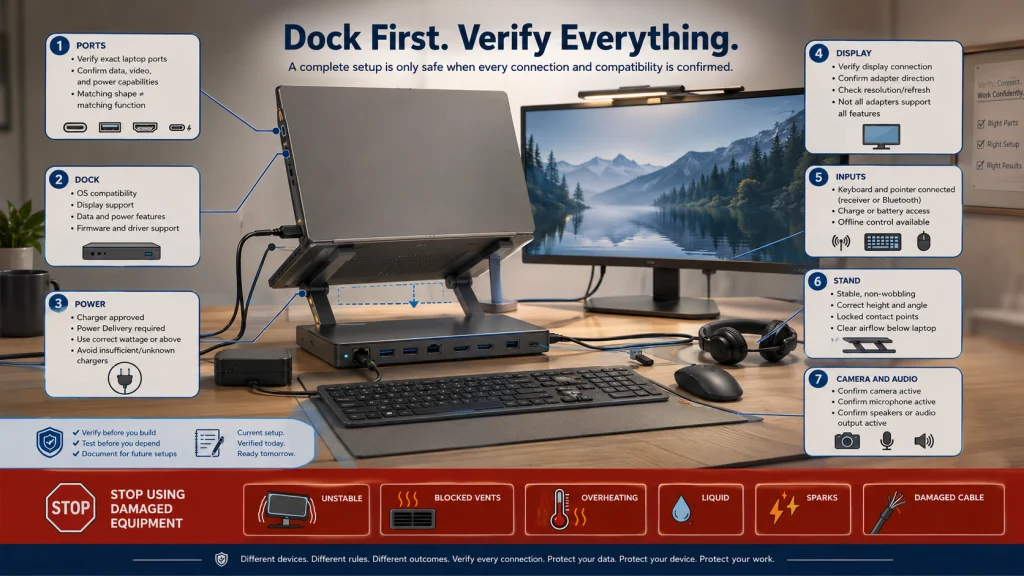
Laptop setups often fail at the small connections that were easy to overlook while shopping. A stand wobbles when the screen is touched. A dock supports one display but not the intended second one. A charger fits the port but does not meet the laptop or dock requirements. A cable that seemed long enough keeps tugging the computer toward the desk edge.
| Dock-and-port checklist | What to verify from exact documentation |
|---|---|
| Laptop ports | Connection type, supported data, display, and charging functions |
| Dock compatibility | Operating-system support, display limits, power delivery, drivers, and required cables |
| Charger requirements | Required power, approved connection method, and whether the dock changes the requirement |
| External display | Supported connection, resolution, refresh behavior, adapter needs, and cable direction |
| Keyboard and pointer | Receiver location, Bluetooth support, cable reach, charging access, and offline operation |
| Stand | Supported dimensions, weight, adjustment locks, contact points, and ventilation clearance |
| Camera and audio | Which microphone, speakers, and camera remain active after docking |
Verify exact ports, chargers, docks, adapters, stands, and displays using current documentation for the specific equipment. Similar connector shapes do not guarantee the same functions or power support.
Stability and ventilation warning: Use a stable surface and a stand designed to hold the laptop securely. Keep ventilation openings clear according to the device instructions. Stop using charging equipment that is wet, visibly damaged, unusually hot, producing a burning odor, sparking, or behaving abnormally, and follow the applicable manufacturer or safety guidance.
Keep the External Input Zone Close and the Screen Readable
Separating the components creates freedom, but it can also create a desk that feels increasingly scattered. The laptop rises, the dock occupies the middle, the keyboard moves forward, and the mouse is pushed aside by cables or notebooks. One obvious compromise disappears while several smaller ones take its place.
Keep the keyboard and pointer beside each other. Place frequently used ports, controls, and charging connections where they do not force the input devices outward. Route cables so they do not pull the mouse, block the keyboard, cross the leg space, or require the laptop to sit at an awkward angle.
Test the screen with the actual work, including reading near the top and bottom, switching windows, video calls, and detailed pointer tasks. A setup that looks balanced with an empty desktop may behave differently once real applications are open and attention shifts away from the workstation itself.
The full ergonomic desk setup provides the adjustment order when the chair, desk, screen, and inputs all need to be coordinated.
Plan the Transition Between the Home Desk and Mobile Use
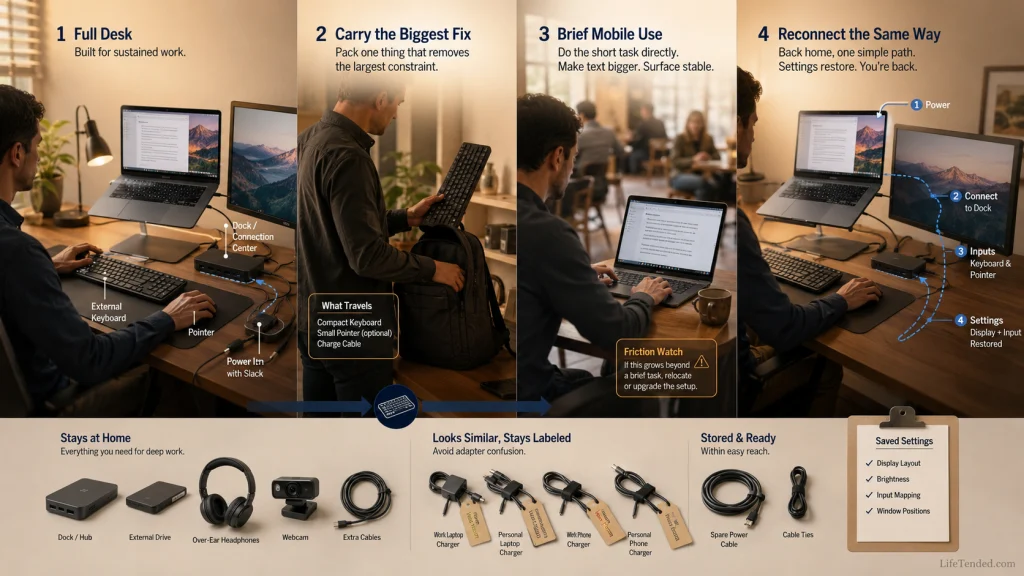
A workstation that takes several minutes and many cables to rebuild may work beautifully once and then slowly disappear from the routine. The laptop comes home, gets placed beside the stand, and stays in direct-use mode because reconnecting everything feels like one task too many. A useful transition plan decides what remains connected, what travels, and how the desk becomes ready again.
Portable fallback plan:
At the home desk
Use the full external-input, raised-display, monitor, or docked arrangement that fits sustained work.
For temporary mobile work
Carry only the accessory that removes the biggest constraint, such as a compact input device or stable portable support.
For very brief checks
Use the laptop directly, increase text size, choose a stable surface, and end or relocate the session when it expands.
On return
Reconnect through a labeled, repeatable cable path and restore the saved display and input settings.
Store the external keyboard, pointer, stand, adapters, and charger where they can be reached without clearing the entire desk. Label adapters that look alike. Leave enough cable slack for connection without creating loops in the walking or leg area.
The best fallback is not a smaller copy of the home workstation. It is the least complicated arrangement that supports the temporary task without turning a café table, kitchen counter, or borrowed desk into a failed version of home.
Avoid Beds, Laps, Unstable Stacks, Blocked Vents, and Damaged Charging Equipment
Beds and soft seating make the laptop easy to bring close, especially when the user is tired and does not want to rebuild the desk setup. The same convenience offers little stable support for the screen, keyboard, or arms, and soft materials can interfere with ventilation. A lap position that felt harmless for a few minutes can become hot, unstable, and difficult to adjust when the task expands.
Do not build a stand from loose books, boxes, cushions, or other stacks that can shift when the screen is opened, a cable is pulled, or the desk is bumped. A raised computer should remain stable during connection, camera adjustment, and ordinary desk movement.
Keep liquids away from the computer, dock, power supply, and connections. Do not use wet, damaged, frayed, sparking, unusually hot, or burning-smelling charging equipment. Disconnect power safely when appropriate and follow current instructions for the exact device.
A portable laptop is not inherently unsafe. The concern is the combination of unstable support, blocked airflow, electrical damage, heat, and a task that outlasts the temporary arrangement.
Route Multiple Screens and Product Selection to the Correct Decision
If the laptop and an external monitor will both remain active, the setup has become a two-screen decision rather than a laptop-only one. The guide to dual monitor ergonomics covers primary-screen choice, frequency, alignment, turning, and unequal screen roles.
When the remaining question concerns stands, docks, keyboards, pointing devices, external displays, or connection categories, move to ergonomic equipment choices. Define the position, compatibility, portability, and storage problem before comparing products.
For the complete relationship among daily posture, workstation setup, movement, and household constraints, return to the posture and ergonomics guide.
Stop Setup Experiments for Persistent or Neurological Symptoms
This article can help identify a hardware tradeoff, setup burden, viewing constraint, or compatibility problem. It cannot diagnose carpal tunnel syndrome, tendon disorders, nerve compression, spinal conditions, vision disorders, headache disorders, repetitive strain injury, or another medical condition from symptoms or workstation photographs.
Stop condition: New, severe, persistent, worsening, or unexplained pain, numbness, weakness, tingling, loss of hand function, significant vision change, severe headache, balance change, or symptoms after an injury require appropriate professional evaluation. Chest pain, severe shortness of breath, fainting, or other emergency signs require immediate appropriate help.
Do not keep raising, lowering, or replacing equipment in an attempt to determine the cause. Record the tasks, timing, locations, and ordinary changes already tried, then seek qualified guidance.
Choose the Session, Separate the Constrained Component, and Test the Routine
Begin by deciding whether the work is brief, mobile, or sustained. Brief direct use can accept a managed compromise. Sustained typing usually benefits from separating the keyboard and pointing device, while a regular desk may support a raised laptop, an external monitor, or a docked arrangement. The decision should match the day people actually have, not the desk they imagine using perfectly.
Verify that the setup is stable, ventilated, compatible, and practical to assemble. Keep the external input zone close, make the screen readable, protect the cable path, and preserve a portable fallback for temporary locations.
The final test is not how polished the desk looks. It is whether the arrangement supports the actual task and can be repeated on an ordinary morning, when the meeting is about to begin, the charger is missing from its usual place, and nobody wants to rebuild the workstation from memory.
FAQs
💻 Is it acceptable to use a laptop without a stand?
Yes, especially for brief work on a stable surface. Increase text size, support the body, and recognize the attached screen-keyboard compromise. Move to separated inputs or a regular desk when the task becomes sustained.
⌨️ When should I add an external keyboard and mouse?
Add external inputs when typing and pointing are sustained enough that the low screen or high keyboard compromise becomes impractical. They allow the display and hand position to be adjusted separately.
🖥️ Is an external monitor better than a laptop stand?
Neither is universally better. Compare desk depth, screen size, camera position, ports, daily setup burden, portability, and compatibility. The more practical option is the one the household can use consistently.
🔌 Can any dock charge and connect any laptop?
No. Connector shape alone does not prove support for charging, displays, data, or every peripheral. Verify the exact laptop, dock, charger, cable, operating system, and display requirements.
🌡️ Can I use a laptop on a bed or cushion?
Soft surfaces can create instability and may block ventilation. Use a stable surface that supports the device securely and keeps the required airflow openings clear.
🎒 How can I keep the setup portable?
Keep the full arrangement at the home desk and carry only the accessory that removes the largest mobile constraint. Use direct laptop operation for brief checks, then relocate when the task grows.
⚠️ When should I stop changing the laptop setup?
Stop treating the workstation as the only explanation when pain is persistent or worsening, or when numbness, weakness, tingling, loss of hand function, significant vision changes, severe headache, balance changes, or symptoms after injury are present. Seek appropriate professional evaluation.